Budget structure
The budget structure specifies what data will be part of the budget:
- Accounts
- Account groups
- posting attributes
Account structure
The account structure specifies what accounts are going to be part of the budget.
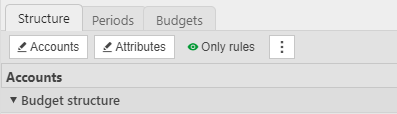
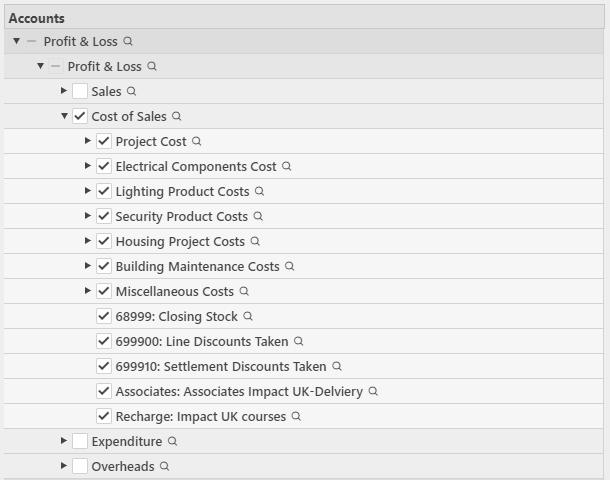
Using the Accounts button you can select:
- a complete section of your P&L or Balance Sheet
- individual account groups (and all it's children)
- individual accounts
Note
You can use CTRL + Click to select a single account group without selecting it's children.
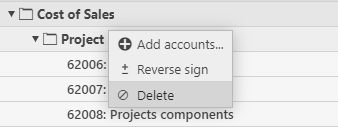
You can edit the account selection at any point by clicking the Accounts button again, or by using the context menu to individually delete or add sub accounts:
Account groups
An account group will include all the accounts associated with it.
You can chose to exclude a few accounts using the Exclude context menu.
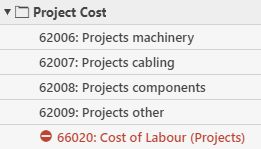
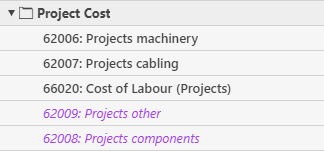
As new accounts are added to a certain group, these will be shown in purple. These accounts will be included in the budget on next refresh.
Budget and actual signs
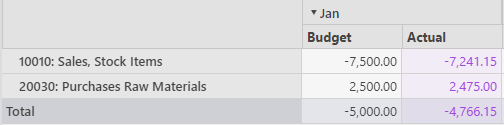
When defining the chart of account structure of a budget you can also choose what is the preferred sign of budget values.
By default, budget values and actuals are in the General Ledger sign:
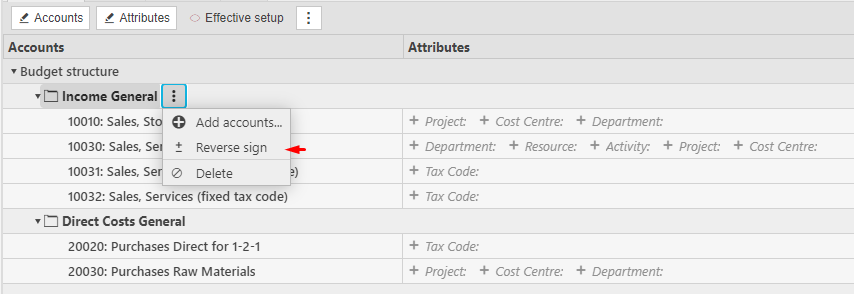
You can reverse the sign of the actuals presented in forecasts for an entire account group, or individual accounts from the budget structure:
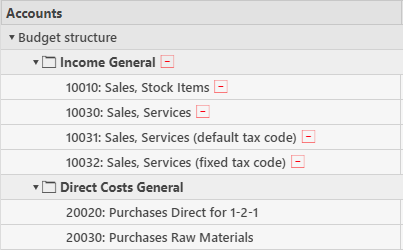
The budget structure will display an icon next to all the accounts that are going to be reversed:
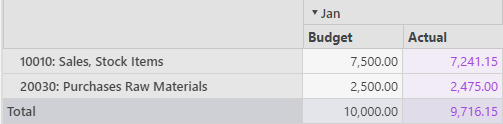
Now the budget forecast actuals will be shown as positive, and the entered budget values can be adjusted as well:
Updated February 2024