Resource
A Resource can be a Customer, Supplier, Member of staff, lead or payment recipient. Resources are generally people or companies that are used in conjunction with multiple areas of the system containing a range of details about resources such as contact information to bank accounts. Each resource is restricted to one user.
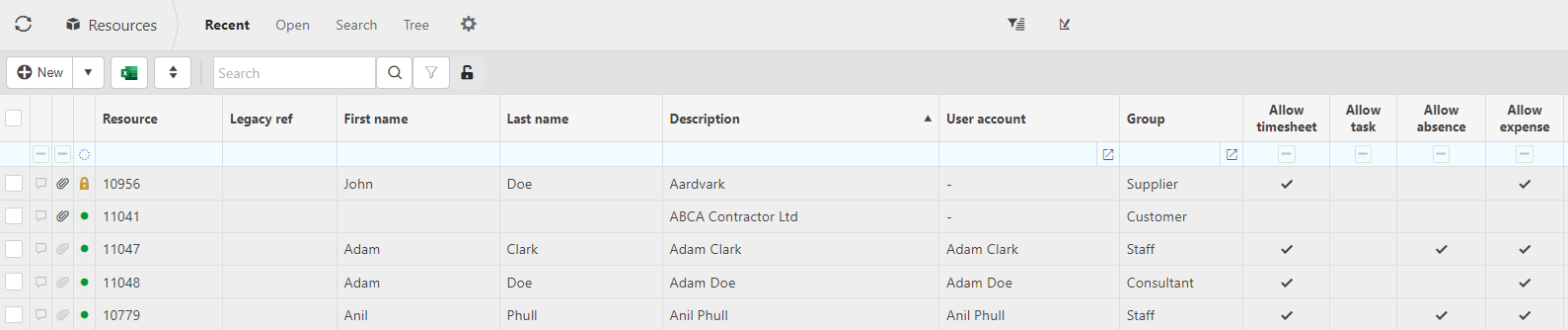
The screenshot below shows a sample grid of resources under the HR function.
More information
- Resource: This will be the resources code.
- Resource information: First name, last name, description and user account.
- Group: The group that the resource belongs to e.g. customer or supplier.
- Allow: these boxes will be ticked or unticked indicating the resources authorisation to different functions e.g. timesheet entry or tasks.
Tip
To modify the columns displayed, select
 in the top right of the page, then tick/untick the information you want to see or not.
In this section you can
Lock a Resource
Locking a resource will disable it. To do so, select the resource that you would like to lock then press Lock.

Amend a Resource
Press Amend.

Amend the selection criteria then press Submit.

Find a resource
You can use the search bar to find a resource by name (first or last).

You can toggle between the Sets to narrow down your search.

Alternatively you can use the selection criteria to search for a resource.


Create a new Resource
Press New.

Fill in the account name.

Tick one or more of these boxes to assign the resource to a Resource group

Fill out the rest of the tabs.

Tabs explained
This section will present the contacts that you have listed for the resource. Press Edit then Add to list more contacts under the resource.
You can also Asign a contact to be the main account if there is more than one contact.