Email Accounts
Email accounts are required to be able to Communicate from the system to both internal and external contacts e.g. Sale invoice to a Customer or an email notification of outstanding Authorisation Tasks.
The email used will vary depending upon the Communication e.g. *sales invoices sent from accounts@domain.example and credit control sent from creditcontrol@domain.example*.
Upon sending an email, both the Communication log and Email log will be populated.

View email accounts
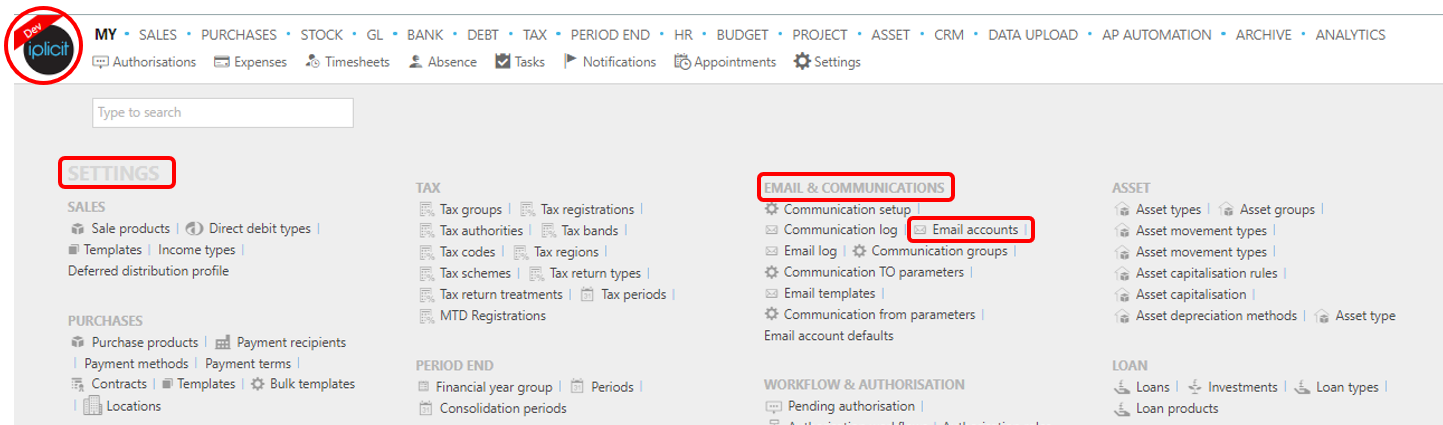
To view Email accounts, either select Email accounts from Email & Communications in the Settings section from the pulse menu -
Note
This is an example screen shot of the pulse menu.
Position of the menu items within the pulse will vary according to available options and dependant on personal screen resolution.
or enter Email accounts in the Quick Launch Side Menu.

The screenshot below shows a sample grid of the Email accounts, which includes some key information.

Information shown is self-explanatory.
Tip
To modify the columns displayed, select
 in the top right of the page, then tick or untick the information you do or don't want to see.
Create a new email account
Open the Email accounts menu from View Email accounts above.
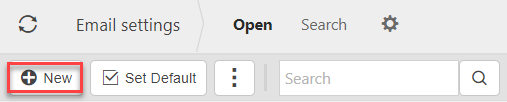
Click New on the email account finder.
Fill in the Description.
Note
- This can be an email or just as description, as you prefer.
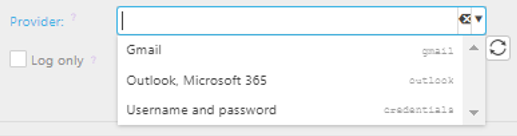
Select the email Provider:
Note
If the Provider is read only then you need to Revoke the authorisation, amend the provider and re-authorise the email account.
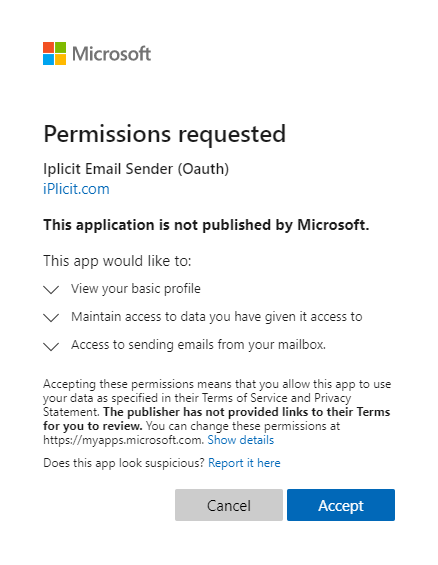
Change consent to allow Iplicit to send emails on your behalf by entering your preferred provider and making the changes.
Gmail
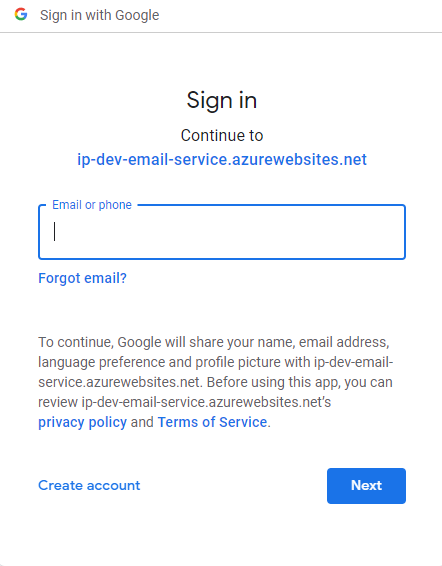
Outlook, Microsoft 365
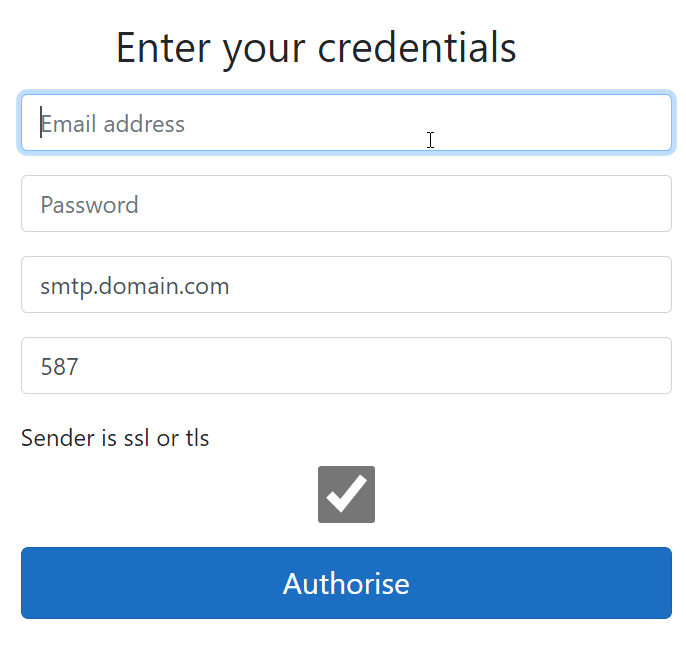
SMTP - Username and password
If you are using a SMTP enter you username and password.
Enter a Valid from date.
- This is the date that the email will be available from
Enter a Valid until if applicable.
- This will typically be left blank.
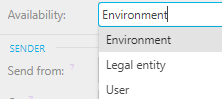
Select the Availability.
Tip
- Availability options:
- Environment: This setting will allow the email account to be hard-coded on a communication
- Legal Entity: This will restrict this email for use only with "Communication FROM parameters"
- User: This is an email account which can be used specifically for a user.
- Availability options:
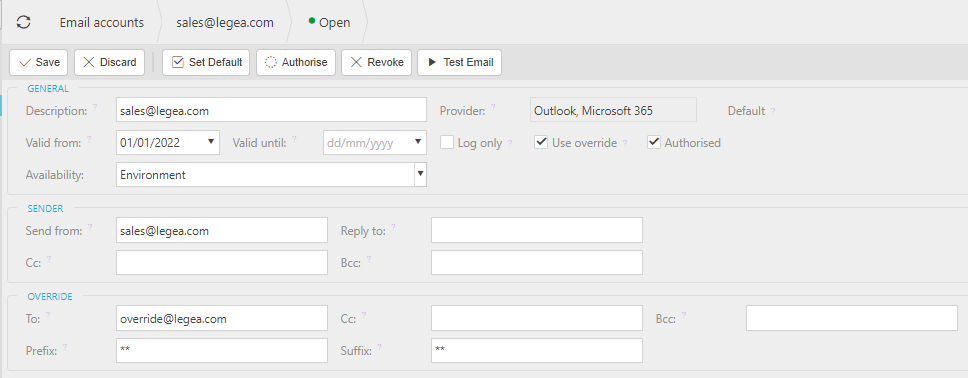
Fill in the Send from field. The email chosen here will be the email address used to send emails from the system (typically this will be the company finance email).
Remaining fields explained
Include CC and Include BCC: This will be the email addresses that receive a carbon copy of outgoing emails. This is a useful tool for ensuring emails are formatted correctly.
Log only box: If this box is ticked, emails on this setting will not be sent however they will be logged on the email log.
Override: This feature can be used to redirect all outgoing emails to a specified email. This feature should be used when testing the email settings are setup correctly, or in a sandbox or training environment to ensure no emails are being sent accidentally while testing.
Select Save
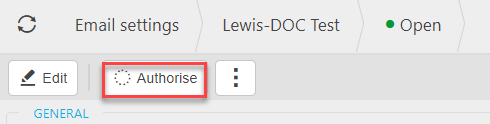
Select Authorise
Tip
- You can authorise as yourself without needing the email credentials of the email account being setup.
Test an email account
- You may want to test an email account for security or operational purposes e.g. making sure certain emails are not being sent externally.
Tick the Use override box -
Enter the email address that will receive the test emails and include any other testing addresses in the email cc and email bcc fields.
Tip
You can set a subject prefix and a subject suffix that will appear at the beginning and end of the subject of the email for easier and more effective testing.
Set the default email address
- Where there are multiple email accounts setup, you will probably want to create a default email account for communications.
Select the email setting you would like to set as default.
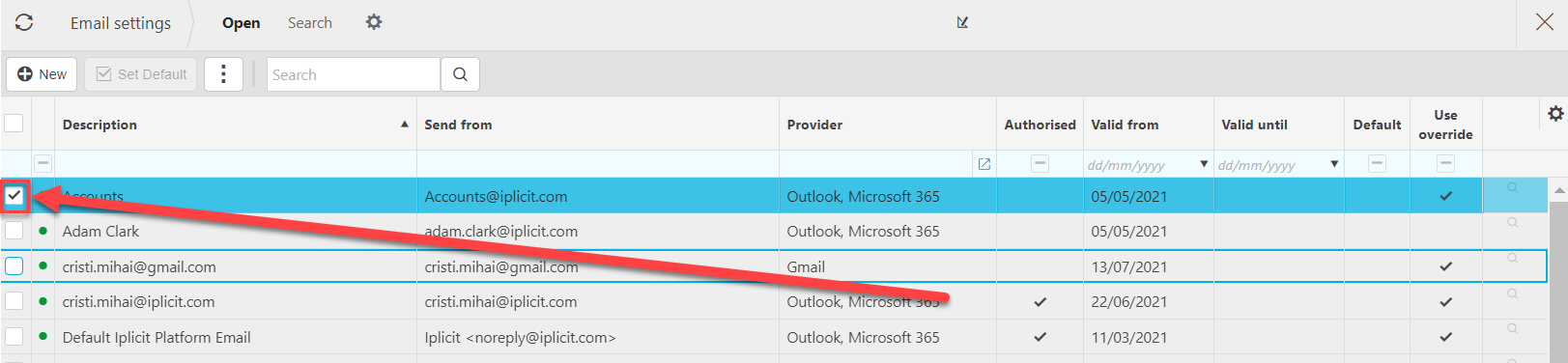
Press Set default.

Lock an email account
If you no longer wish to send emails from an email account, you can Lock it. This will disable the email account from there on.
Press

Press Lock
Delete an email account
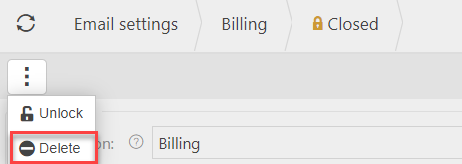
Select the locked email account you would like to delete.
Delete the email account.
Search for an email account
Use the search bar in the email account finder.
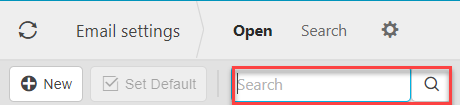
Enter the email account description that you are trying to find and tab out.
Edit an email account
Select the email account you want to edit.
Tip
You can use the search bar to find a user.

Press Edit.
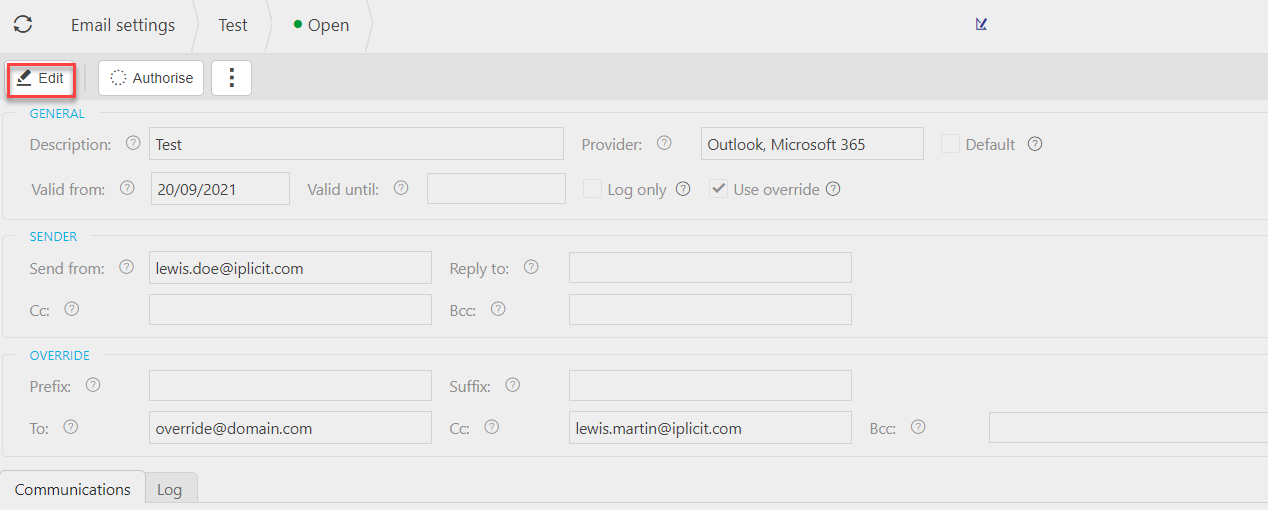
You can now make changes to the fields that turn white.
Updated June 2023