Payroll products
Viewing Payroll products
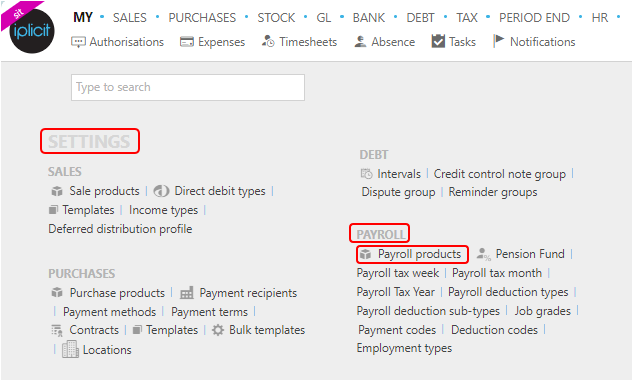
Select Payroll / Payroll products from the Settings section of the pulse menu -
Note
This is an example screenshot of the pulse menu.
Position of the menu items within pulse will vary according to available options and dependant on personal screen resolution.
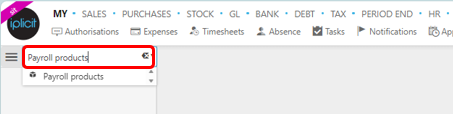
or enter Payroll products in the Quick Launch Side Menu.
This will then show the Payroll products on the system where normal customisation of Sets can be used.
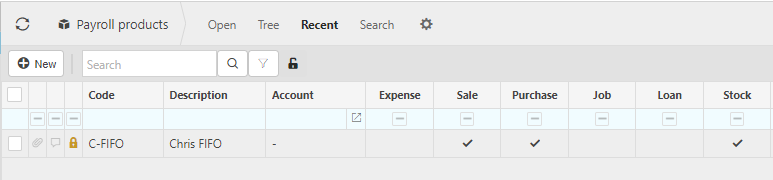
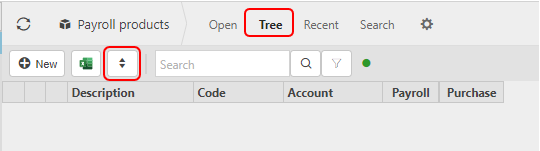
And Tree option will be available where you can toggle the rows to different levels.
Tip
To modify the columns displayed, select  in the top right of the page, then tick/untick the information you want to see or not.
Creating a new Payroll product
Select Payroll products from one of the options as shown above in Viewing Payroll products.
Select New.
Enter main product details.
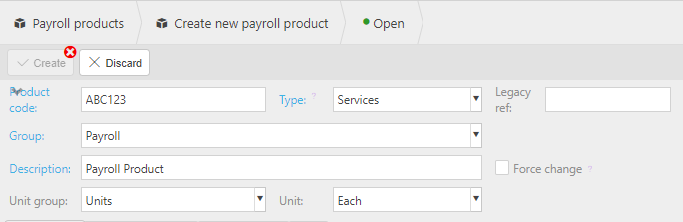
Enter a unique product code and associated product description.
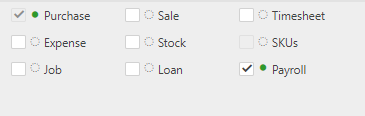
Tick Payroll checkbox and any other checkboxes that identify how the product will be used.
Note
Product type (goods or services) influences tax code selection upon document entry as well as tax return handling.
Enter Accounting values.
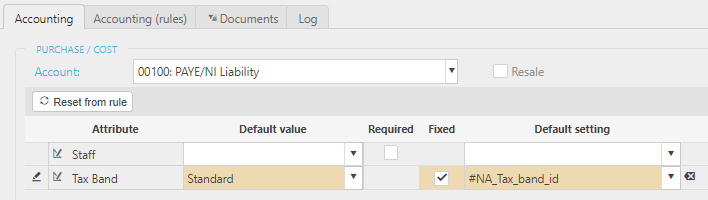
If the Payroll product has been identified as a Purchase or Sale product then you must enter a Chart of Accounts code and any related posting attributes.
Posting attribute can be optional, required or fixed.
If an attribute is fixed, a default value must be entered e.g. Tax Band is fixed to Standard in this screenshot.