Tax
VAT Return
Follow the steps below to process a VAT return.
Select VAT Returns from the menu.

Select New to create a new return.
Note
Multiple VAT returns can be in progress at a time but only one per Tax Group.
Select the Tax Group.
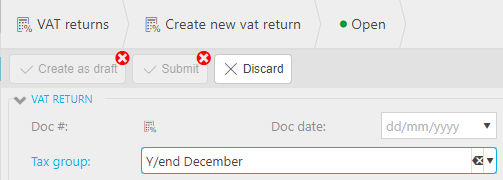
Select the Tax Period.

Note
The Tax Period is not the accounting period, it reflects the date range for which the tax documents refer. Tax periods are setup based upon the frequency specified on the Tax Group.
Select Create as Draft.
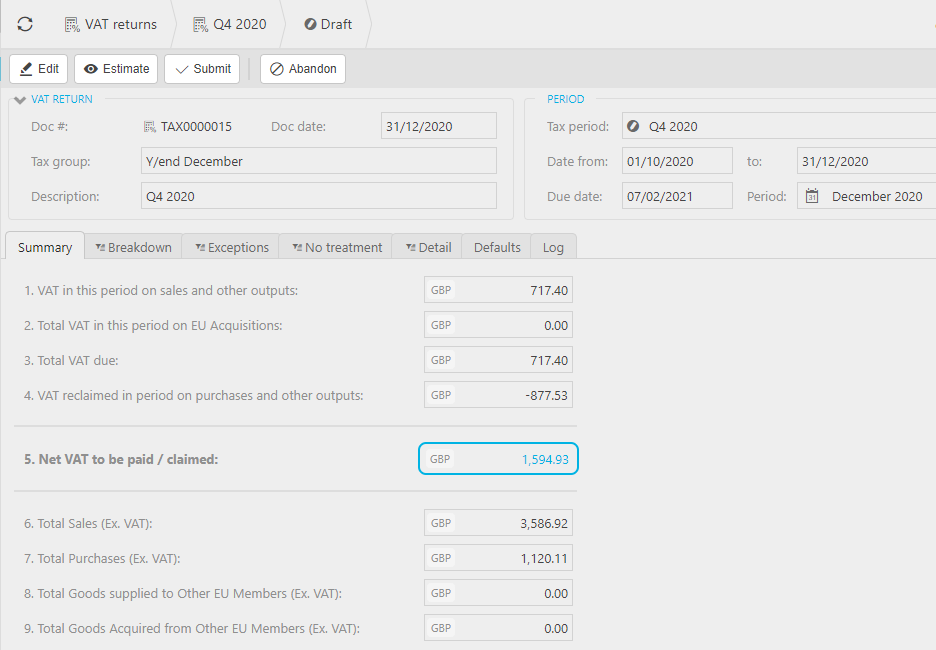
Upon Create as draft, an Estimate will be automatically run and the VAT Return populated as per the vat return type associated with the Tax Authority specified on the Tax Group.
Note
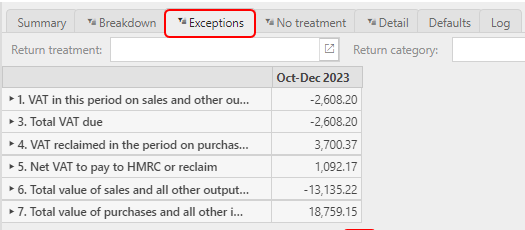
Estimate will find and link all tax posting documents which are <= the vat return date to. This includes any documents which could be prior to this VAT Return but were not included on a previous return e.g. owing to late document entry after previous VAT Return has been Submitted - see Exceptions tab.
Tip
An Estimate can be manually run at any time and can also be set to auto run by the Scheduler.
Note
Abandon a VAT Return
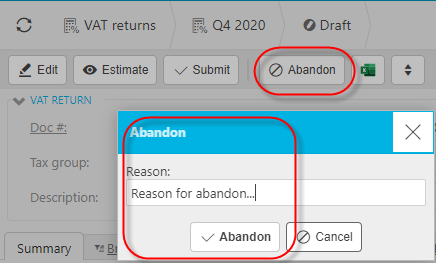
Whilst a return is still in draft mode, it can be abandoned.
An abandoned return will deallocate any documents linked to the return.
This tab allows you to see the breakdown of the return by tax code.
Click on an amount to see the detail.




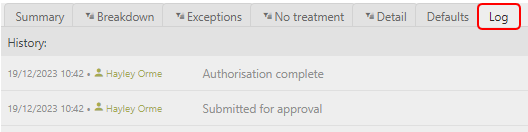
Select Submit to send the VAT Return for authorisation.
Tip
Run a Fresh Estimate before selecting Submit to ensure all documents at this point are included.
If there are any tax documents which are not entered in time to be picked up in this return, they will be selected and linked in the following return.
Note
Following authorisation, unlike e.g. Purchase invoices, the return needs to be Processed and Posted.
Tip
Workflow authorisation is available for VAT returns.
Submit NIL VAT Return
There may be occasions where you wish to submit a NIL VAT Return. This is only available where the amount to be paid / claimed is zero (0).
In these circumstances, a Submit Nil button will be available.

You will be presented with the following confirmation dialog.
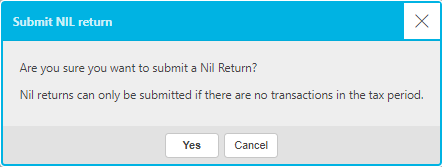
Select Yes to continue. The Nil return will not be submitted for authorisation and you can now Process the Nil VAT return.
The return will be locked and stamped with Nil.
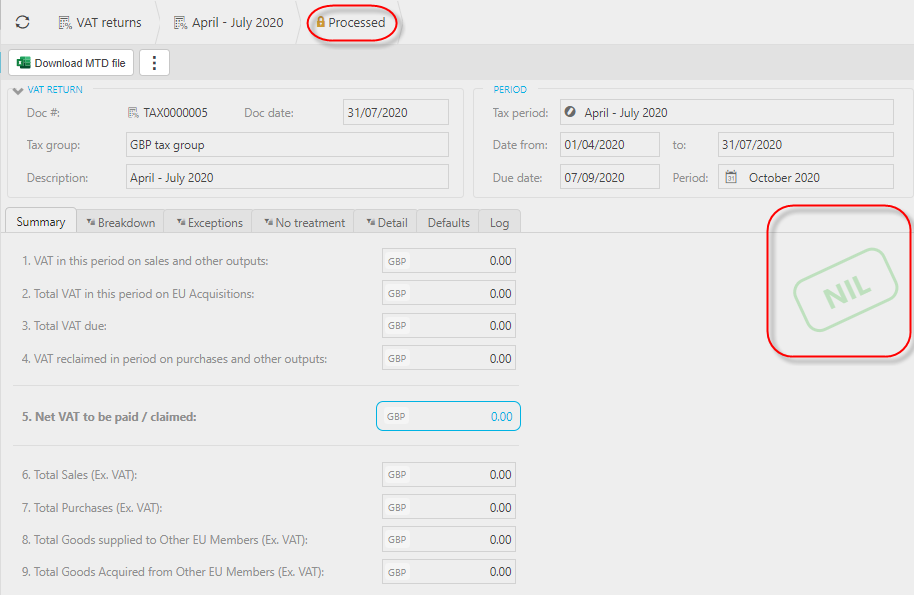
Select Process
The relevant interface as per the Tax Group will be run.

Note
Each Tax Authority may have its' own equivalent MTD then this would be used instead.
Reprocess
Reprocess is available (with the appropriate permissions) if for whatever reason the first Process needs to be rerun.
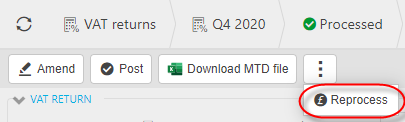
Amend an approved but unposted return
You can amend the content of a VAT Return before it is posted.Select Amend.
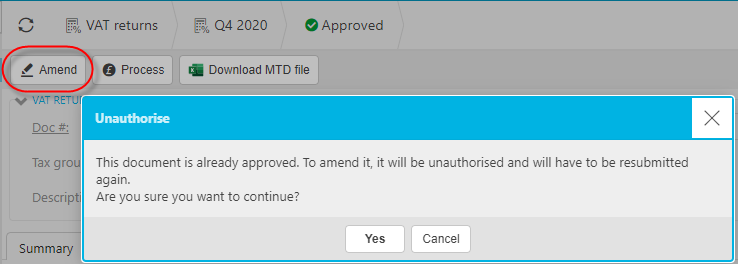
The VAT Return will be changed to a draft state and the submission will have to be repeated as above.
Either select Download MTD file or Process if MTD registered
Download MTD file
This process is only required (and available) for non MTD registered customers. If the MTD interface is specified on the Tax Group, this button will not be available for selection.
MTD
If the MTD interface is specified on the Tax Group then Process will pop-up a window similar to the following and upon Submit, the VAT return submission will be automatically to HMRC via the MTD interface.

This is only required until the integrated MTD solution is available in the system which is scheduled for release Q4 2020.
Select Post to enter the completed VAT Return to the general ledger.
Account defaults must be set up correctly before you can post to the GL.
Upon successful post, the return will be stamped with Posted.
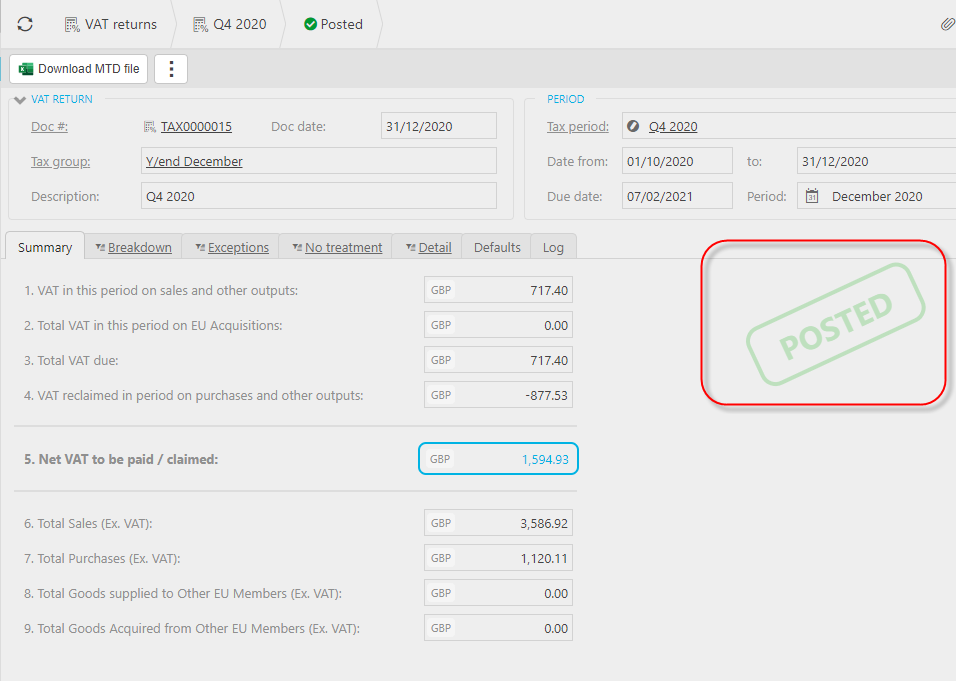
Select General Ledger (GL) to see the posting
The GL posting reverses the input & output tax for each Tax Code included in the VAT Return and creates a VAT liability posting line for the balance.

VAT Return reversal
Following posting to the General Ledger, it may be necessary to reverse the VAT return.
Select Reverse.

Enter a reason for the reversal
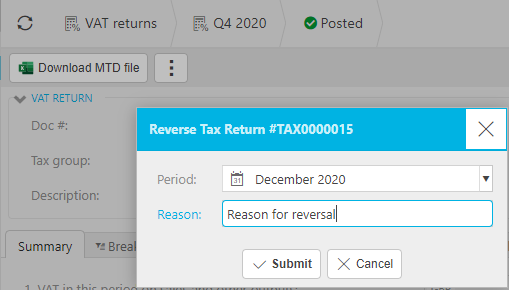
The posted VAT Return will then be reversed and the documents previously associated with the return will be deallocated and available for selection on another return.
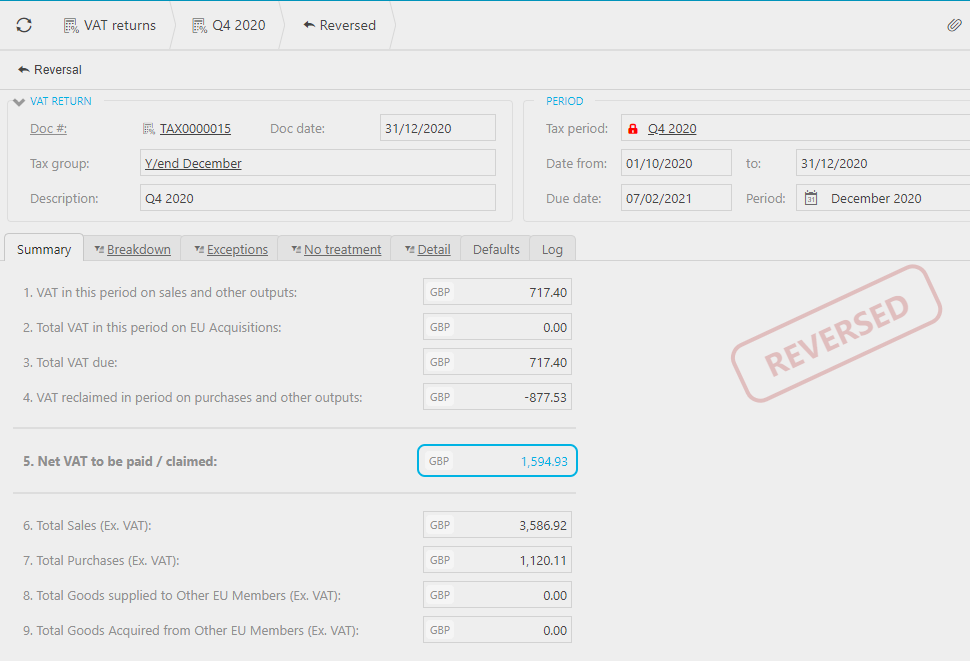
Note
Reversal cannot be performed on VAT Returns submitted via the MTD interface.
Shortening a Tax (VAT) period
There may be instances where you wish to shorten a Tax Period e.g. where you wish to make an early submission to realise a a significant claim amount.
To do this you will need to change the date to on the tax period in question and the date from in the subsequent tax period.
Note
If you are using HMRC MTD integration, whilst it is allowable to shorten a period, the date from and date to are also recorded by HMRC so you also will need to coordinate this date change via HMRC.
If you don't do this and attempt to submit a return early, you will get an error similar to the following "The remote endpoint has indicated that the submission is for a tax period that has not ended”.