Timesheets
Timesheets can be entered by the user for themself only or for other users (where timesheet entry has been delegated to allow entries by another user e.g. Timesheet Administrator). The method of timesheet entry is common for both, but access differs as follows -
Entering your own timesheet
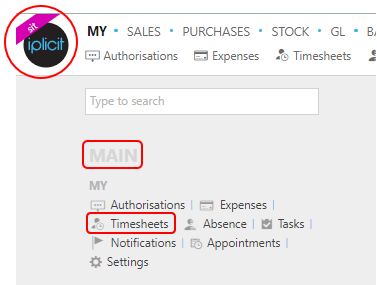
To enter your own Timesheet, either select Timesheets in My menu from the pulse menu -
Note
This is an example screen shot of the pulse menu.
Position of the menu items within pulse will vary according to available options and dependant on personal screen resolution.
or from the Main Menu select My then Timesheets -

or enter My Timesheets in the Quick Launch Side Menu.

- Once you have entered the appropriate menu for My timesheets, the screenshot below shows a sample grid of timesheets, which includes some key information.
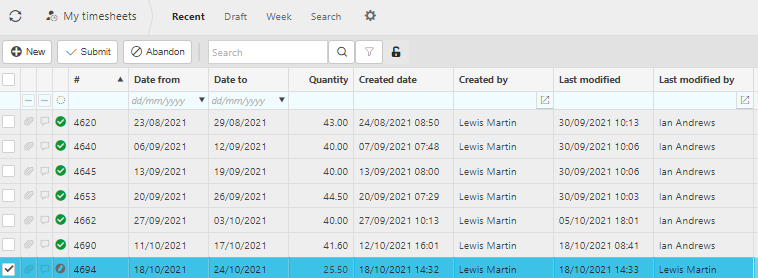
Grid information explained
- Icon:
 = Approved /
  = Pending authorisation /
  = draft.
 - Date from: The start date of the timesheet.
- Date to: The end date of the timesheet.
- Quantity: The total amount of hours logged in the timesheet.
- Created date: This will be presented as the UTC date and time.
- Created by: Who created the timesheet.
- Last modified: This will be presented as the UTC date and time.
- Last modified by: The person who last modified the timesheet.
Tip
To modify the columns displayed, select
 in the top right of the page, then untick the information you do not want to see.
Entering data
Select New.
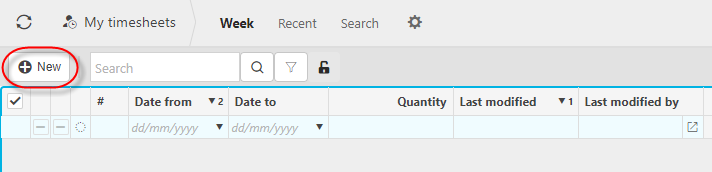
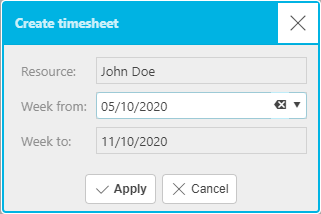
Select the resource and week then press Apply.
Note
- Timesheets are always weekly, week starting Monday.
- Timesheets can be entered against Resource without the resource needing to be a user.
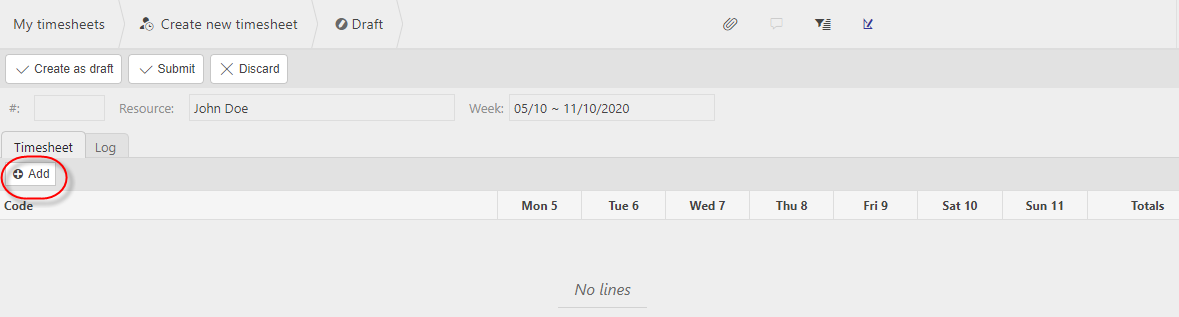
Select Add to create new timesheet line(s).
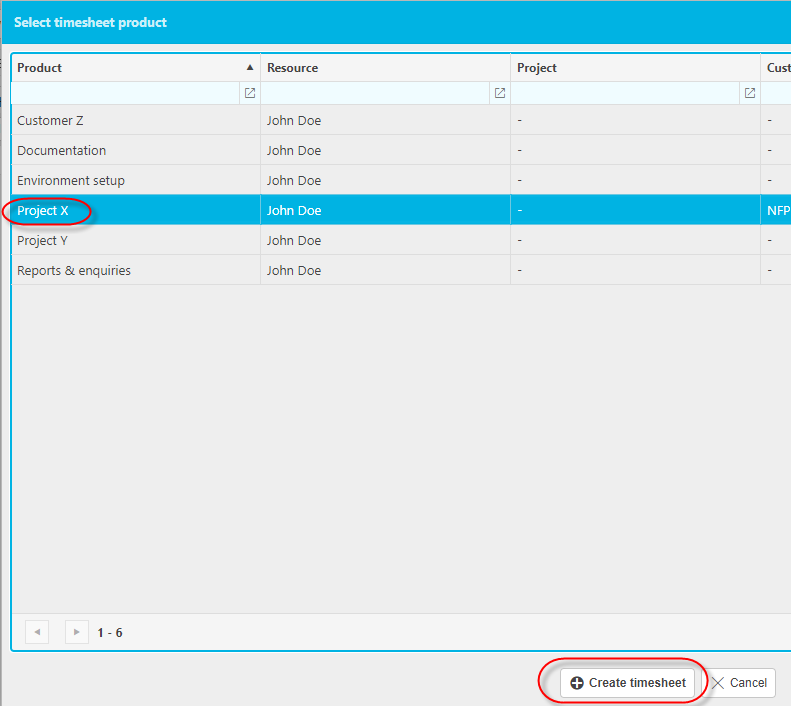
Select a timesheet product then press Create timesheet line.
Tip
- The same timesheet product can be entered multiple times in the same week.
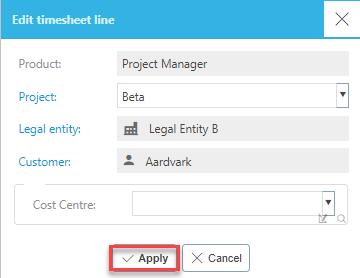
Check the posting attributes are correct such as the customer, legal entity and project, If incorrect, make changes.
how to make changes to the posting attributes
The Default attributes are inherited from the timesheet product.
To edit the posting attributes press


- Press Edit then make changes to the available fields before pressing Apply.
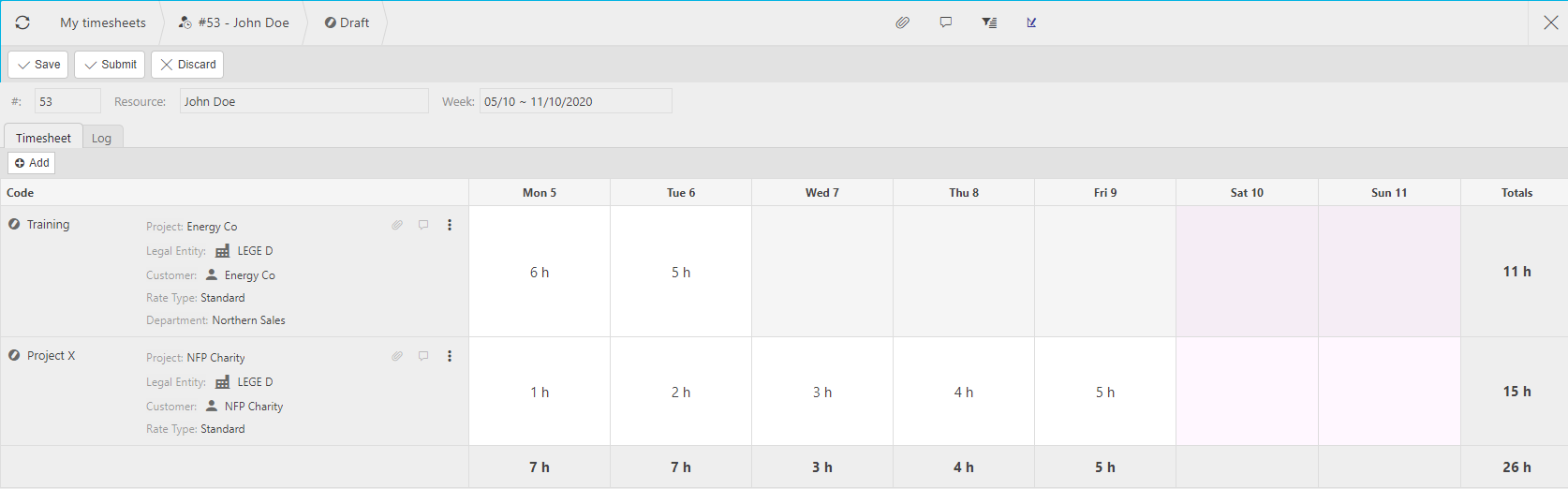
Now enter the timesheet values.
Add further information in the timesheet
Tip
Click on the day to enter start/end times and notes.
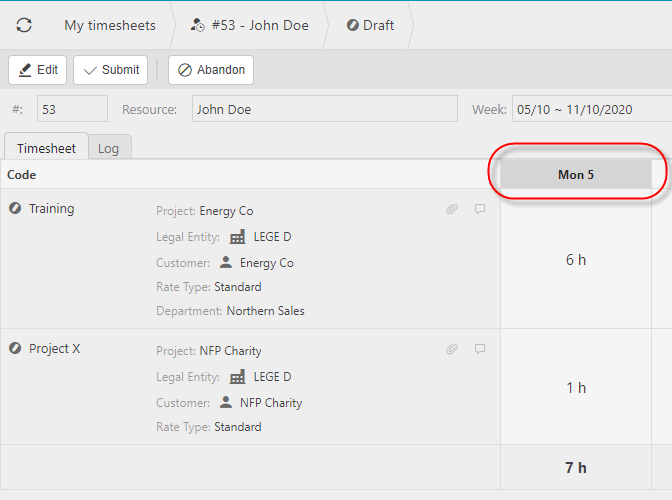
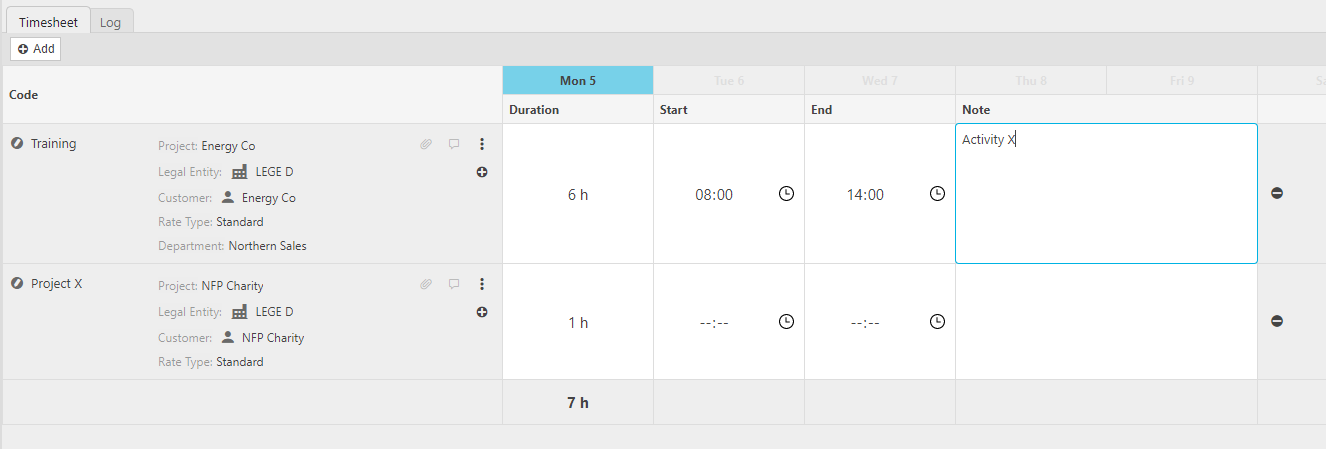
Once you are happy with your timesheet select Submit.

- If you have not setup an Authorisation Workflows the timesheet will automatically convert to an approved status.
Entering a timesheet for another user
To enter a Timesheet for another user, as long as you have been delegated access to do so, either select Timesheets in HR menu from the pulse menu -
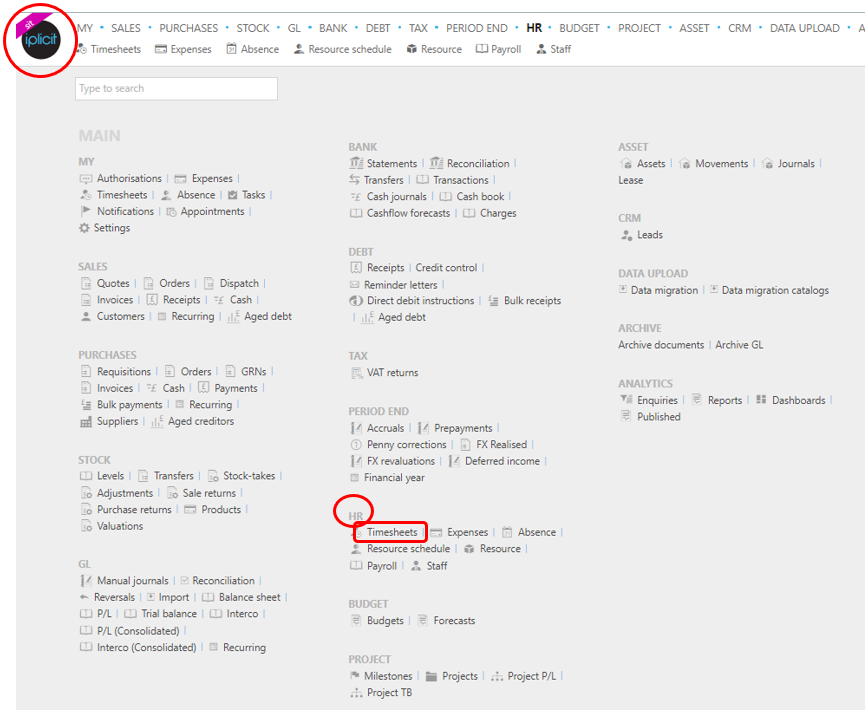
or from the Main Menu select HR then Timesheets -

or enter Timesheet manager in the Quick Launch Side Menu.

- Once you have entered the appropriate menu for Timesheet manager, the screenshot below shows a sample grid of timesheets, which includes some key information.
Grid information explained
- Icon:
= Approved / = Pending authorisation / = draft.
- Date from: The start date of the timesheet.
- Date to: The end date of the timesheet.
- Quantity: The total amount of hours logged in the timesheet.
- Created date: This will be presented as the UTC date and time.
- Created by: Who created the timesheet.
- Last modified: This will be presented as the UTC date and time.
- Last modified by: The person who last modified the timesheet.
Tip
To modify the columns displayed, select
in the top right of the page, then untick the information you do not want to see.
Entering data
Select New.
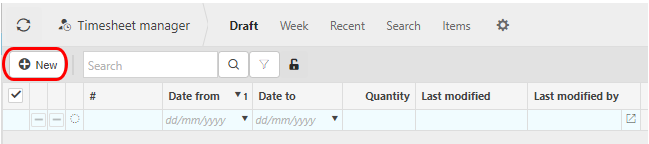
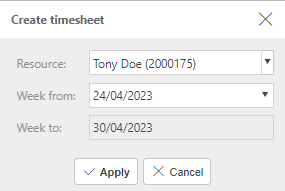
Select the resource and week then press Apply.
Note
- Timesheets are always weekly, week starting Monday.
- Timesheets can be entered against Resource without the resource needing to be a user.
Select Add to create new timesheet line(s).
Select a timesheet product then press Create timesheet line.
Tip
- The same timesheet product can be entered multiple times in the same week.
Check the posting attributes are correct such as the customer, legal entity and project, If incorrect make changes.
how to make changes to the posting attributes
The Default attributes are inherited from the timesheet product.
To edit the posting attributes press
- Press Edit then make changes to the available fields before pressing Apply.
Now enter the timesheet values.
Add further information in the timesheet
Tip
Click on the day to enter start/end times and notes.
Once you are happy with your timesheet select Submit.
- If you have not setup an Authorisation Workflows the timesheet will automatically convert to an approved status.
Further Timesheet functions
Abandon a timesheet
Only saved timesheets can be abandoned.
Following abandon, the timesheet can be deleted.
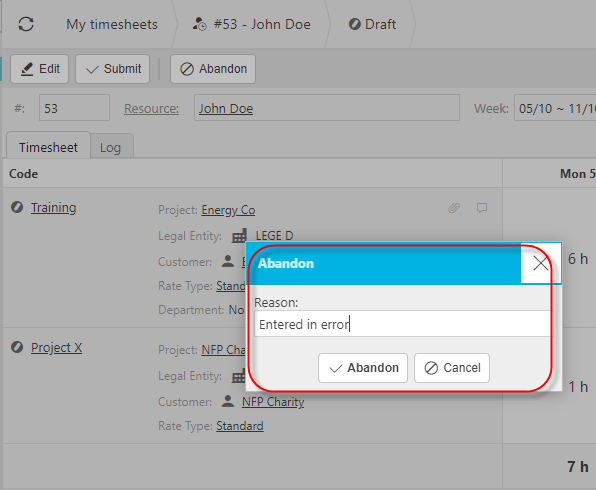
You must enter a reason to explain why you wish to abandon a timesheet.
Delete a timesheet
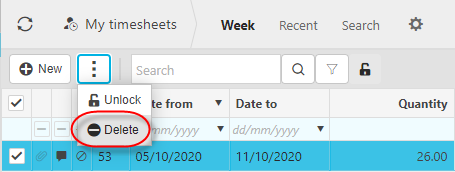
Only abandoned timesheets can be deleted.
Beware, delete will remove the timesheet and all related timesheet lines.
Note
Rather than delete an abandoned timesheet, it is also possible to unlock and edit an abandoned timesheet.
Submit a timesheet
Find the timesheet that you would like to submit.
Select Submit to send the timesheet for approval.
Note
If no timesheet authorisation workflow is setup, the timesheet will auto approve.
- If a timesheet is sent for approval, it will be assigned a Pending status and icon.
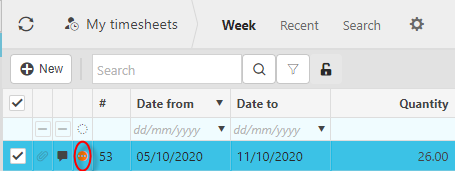
- If a timesheet is approved, it will be assigned an approved status and icon.
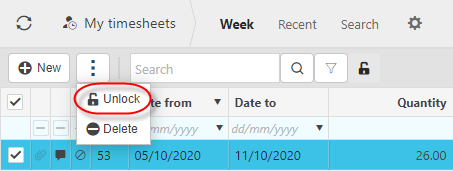
Unlock timesheet
Unlock is only available for abandoned timesheets.
Note
Rather than unlock an abandoned timesheet, it is also possible to delete it.
Authorise a timesheet
Authorisation workflow must be set up for timesheets to be distributed for authorisation.
Commonly, daily emails are sent to authorisers requesting that they authorise timesheets.
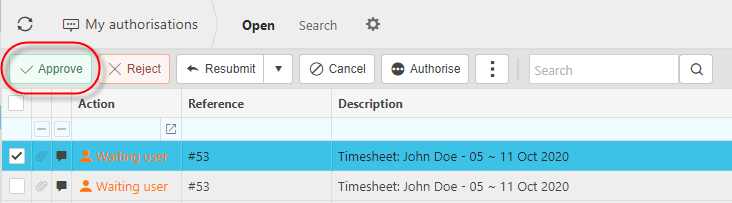
You will see timesheets awaiting authorisation in MY authorisations.
Following authorisation, sale timesheets are available for sale invoice creation from the timesheet.
Self-billing invoices can also be generated from timesheets.
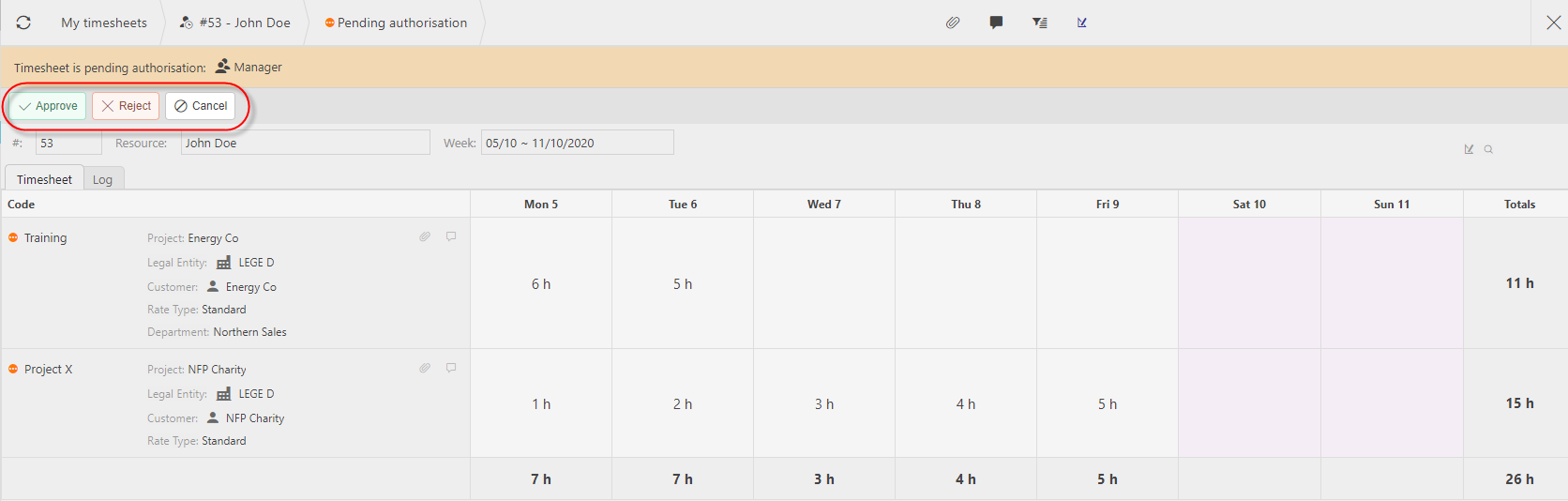
Approve in the either MY authorisations or the timesheet editor itself.
MY Authorisations
Timesheet editor
Note
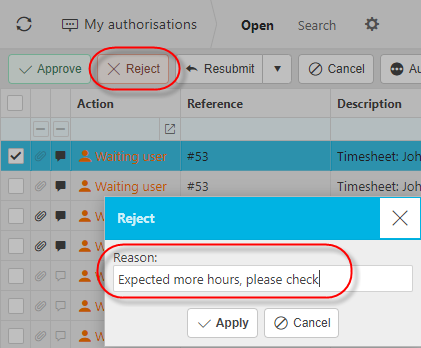
You can also choose to reject a timesheet.
Timesheet rejection
Upon rejection, the timesheet will typically be returned as a task to the timesheet resource of the person who entered the timesheet.
Rejection requires an explanation of why the timesheet was rejected. This is used to advise the person receiving the rejection, how to progress it.
Copy a timesheet with or without the values
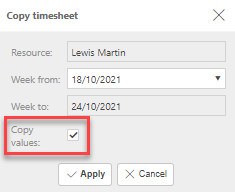
- It is now possible to copy timesheets, with or without timesheet values.
To do so, press Copy.

You can now choose whether or not you would like to Copy values.
Note
Copying without values will copy the timesheet with blank fields in the days.
Hold and stop timesheets
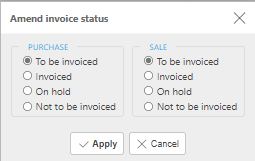
Timesheets status can now be set to hold or not to be invoiced (Stop).
The status of the timesheet will be presented by the following icons:
 = Available to be invoiced.
 = Invoiced.
 = On hold.
 = Not to be invoiced.
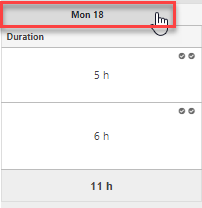
To set a status, press the day you would like to set a status for.
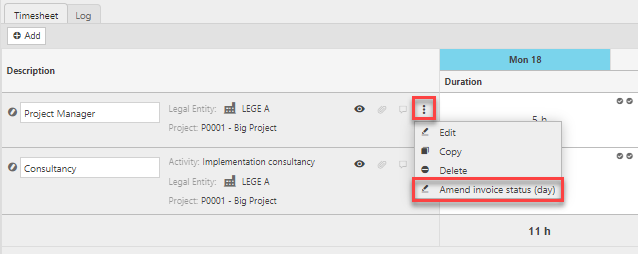
Press Amend invoice status.
Select the status that you would then press Apply.
Tip
You can Amend invoice status for the whole week by following the same process but not selecting an individual date as stated in (step 1).
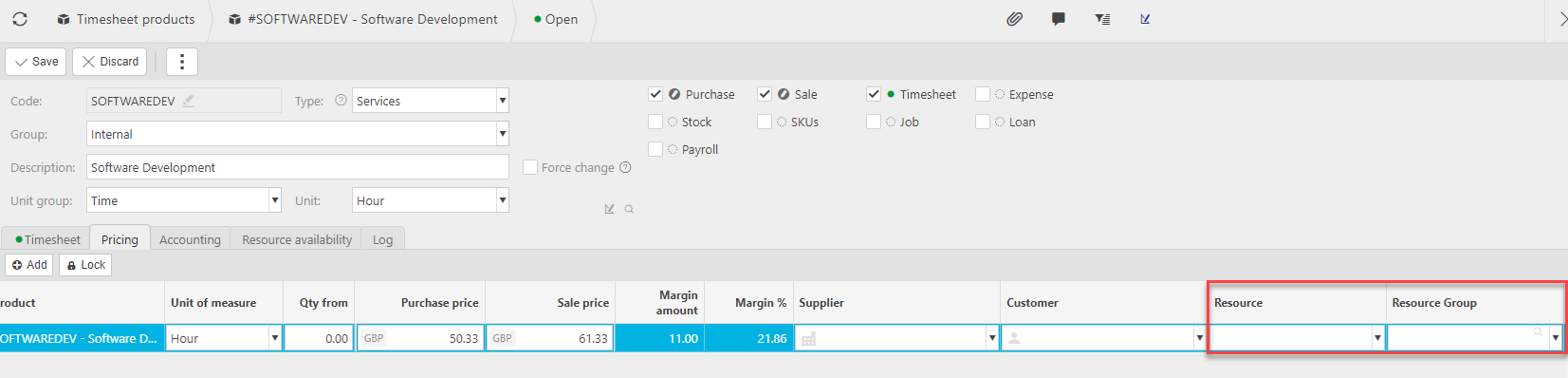
Price a timesheet by resource group
- Timesheet product pricing can now also be setup by Resource Group. This supports reduced price maintenance.
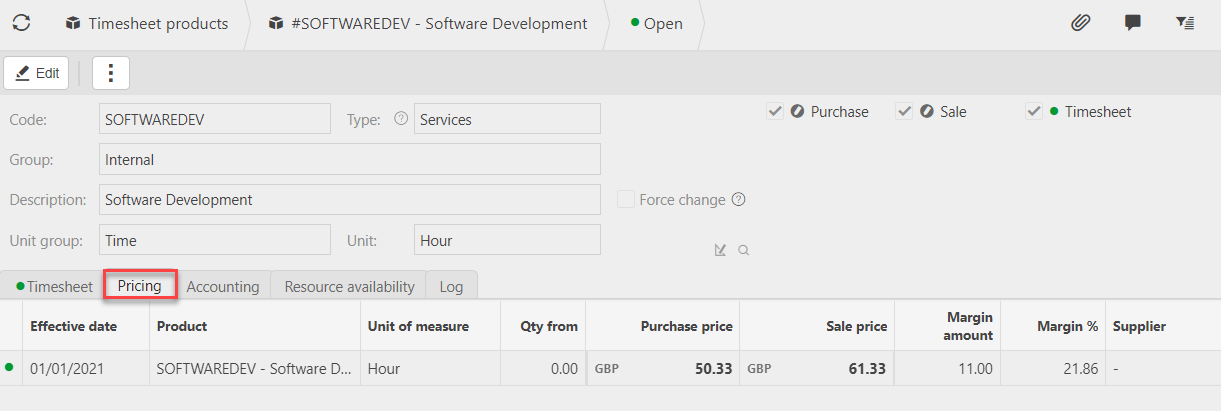
Open timesheet products
Select the timesheet product that you would like to price.
Open the Pricing tab.
- Press Edit
- Select the resource or resource group for the timesheet product pricing.
- Press Save.