Search Results for

    Show / Hide Table of Contents

    Legal Entities

    • A Legal Entity is required for each organisation that financial documents will be entered against.

    • One or many Legal Entitiess may exist within each environment and they can share details e.g. Tax Authority, Financial Year Group, Base currency, etc.
      Note

      Where multiple Legal Entities exist, consolidated reporting options are available, regardless of shared periodicity and even base currency. The decision to share setup e.g. Financial Year Group, apart from the commonality of year end date may be governed by the the business process to e.g. share period end handling.

      Tip

      Select to jump to the Legal Entity contact account and see the related addresses, phones, emails, contacts, URLs.

      Entity

      • Code: Unique code for the Legal Entity

        Note

        Use an easy to remember code as it will be:

        • Shared with the associated contact account and
        • Also be the Interco code (if applicable) and thus be used as a posting attribute value.
        • Description

    The Tabs

    • General
    • Bank accounts
    • Stationery and images
    • Advanced
    • Resource
    • Tax Registrations
    • Locations
    • Interco
    • Data Control
    • Emails
    • Log
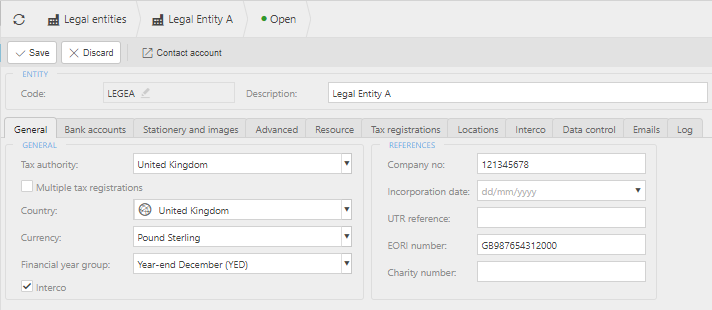
    • Tax Authority

    • Multiple tax registrations:

    • Country:

    • Currency: Base currency for the Legal Entity.

    • Financial Year Group

    • Interco: Tick this check box if you also wish to use this Legal Entity for Interco documents. This will create an addition Tab - see Interco Tab.

    References

    • Company No:

    • Incorporation date:

    • UTR reference: Unique Tax Reference (used in England and Wales Tax Authority

    • EORI number:

    • Charity No:

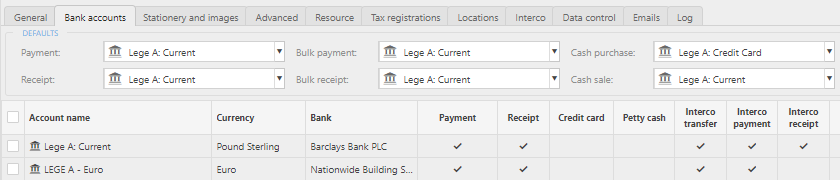
    Each Legal Entity may have many bank accounts.

    Defaults

    Set these defaults for use when entering quick payments, Bulk payments, etc using this Legal Entity.

    Bank accounts

    • This tab shows all related Legal bank accounts.

      Tip

      If you have the correct access to view bank accounts, press CTRL then click to jump to the underlined bank account.

    • The images and links identified in this section are automatically used on documents (e.g. Sale Invoice, remittance) and communications associated with this Legal Entity.

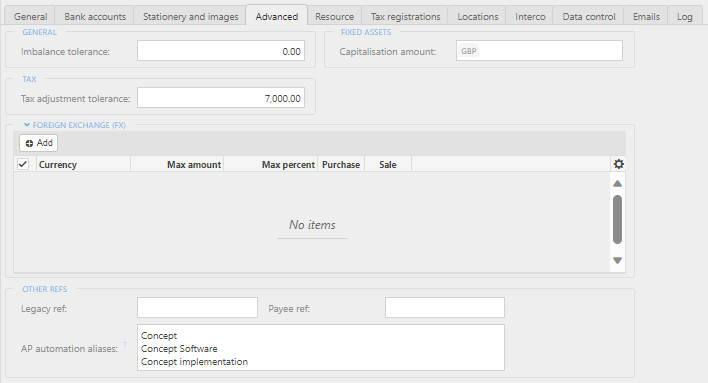
    • Used to record default tolerances (e.g. tax tolerance) and document types for the Legal Entity.

    • FX tolerances: these can be set in this section which will affect the FX realised function.

    • AP automation aliases: alternative names to match during AP Automation scanning

    • In the majority of instances, a Legal Entity will only have one Tax Registration.

    • In the instances where a Legal Entity has multiple tax registrations e.g. the Legal Entity has separate VAT registrations in both England & Wales and Ireland Tax Authorities. Where this is the case, if the Tax Authority of e.g. a sale invoice is different to the default Tax Authority for the Legal Entity but is in another tax registration then the Tax Authority is available for selection on the document and the responsibility of the resulting tax posting will go to the selected Tax Authority.

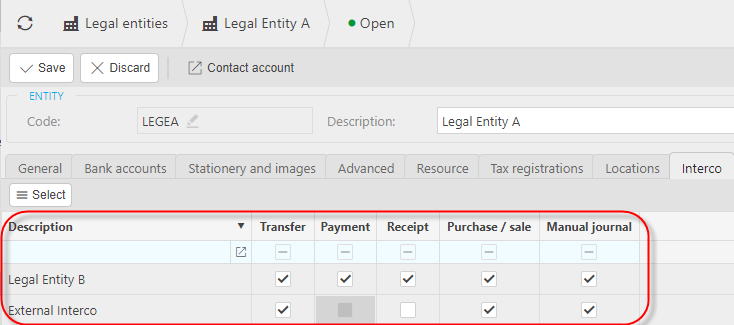
    Set up Legal Entity as Interco.

    1. On the General Tab, tick the Interco checkbox.

    2. A new tab will be created fopr Interco

    3. Relate each Interco Legal Entity to other Interco Legal Entity(s) and tick the checkbox for each type of movement (e.g. payment which is needed for Bulk Interco payments).

      Tip

      These relationships must be identified per Legal Entity (which is identified as Interco) to define the possible Interco movements between them.

      • This is required to be able to process Interco documents between the Interco Legal Entities e.g. Cashbook transfers, Interco Sales, Interco Purchase invoices, Interco tax.
      Tip

      Use automation(s) to automate the creation of certain documents in both Legal entities e.g. to automatically create a Purchase invoice in Legal Entity B following the posting of a Sale invoice in Legal Entity A.

    • If Data Access Control is activated, you can also use the Data Control tab to add Legal Entities to Data Access Control Groups.


    Updated March 2024

    In this article
    Back to top Generated by DocFX