Cash Sales (SRI)
This feature is used when cash sales are made e.g. receiving credit card payment for goods in a physical store. The payment will automatically be receipted and there will be no need for invoicing.
The screenshot below shows a sample grid of the cash sales finder, which includes some key information.

Further information
Date: The date the cash sale was created.
Document type:
Doc#: The document code.
Description: The description of the cash sale.
Customer: Who the cash sale is for.
Bank: The cost.
Tip
To modify the columns displayed, select
 in the top right of the page, tShen tick/untick the information you want to see or not.
Viewing Cash Sales
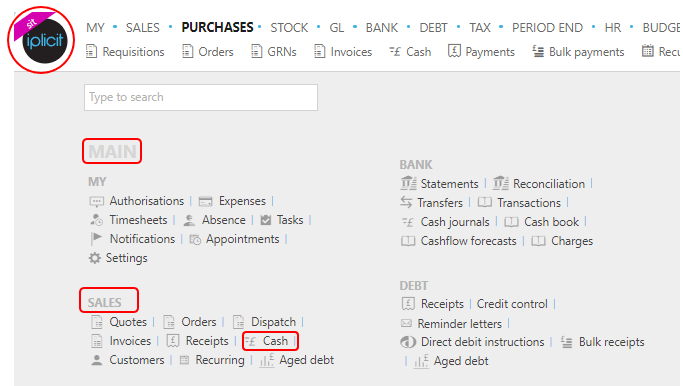
Select Sales / Cash from the Main section of the pulse menu -
Note
This is an example screen shot of the pulse menu.
Position of the menu items within pulse will vary according to available options and dependant on personal screen resolution.
or from the Main Menu select Sales then Cash -

or enter Cash sales in the Quick Launch Side Menu.

This will then show the Cash sales on the system where normal customisation of Sets can be used. Also, depending on User roles, the My/All option will be showing.

Tip
To modify the columns displayed, select in the top right of the page, then tick/untick the information you want to see or not.
Create a new Cash Sale
Create a new Cash Sale
Select Cash sales from one of the options as shown above in Viewing Cash Sales.
Press New.

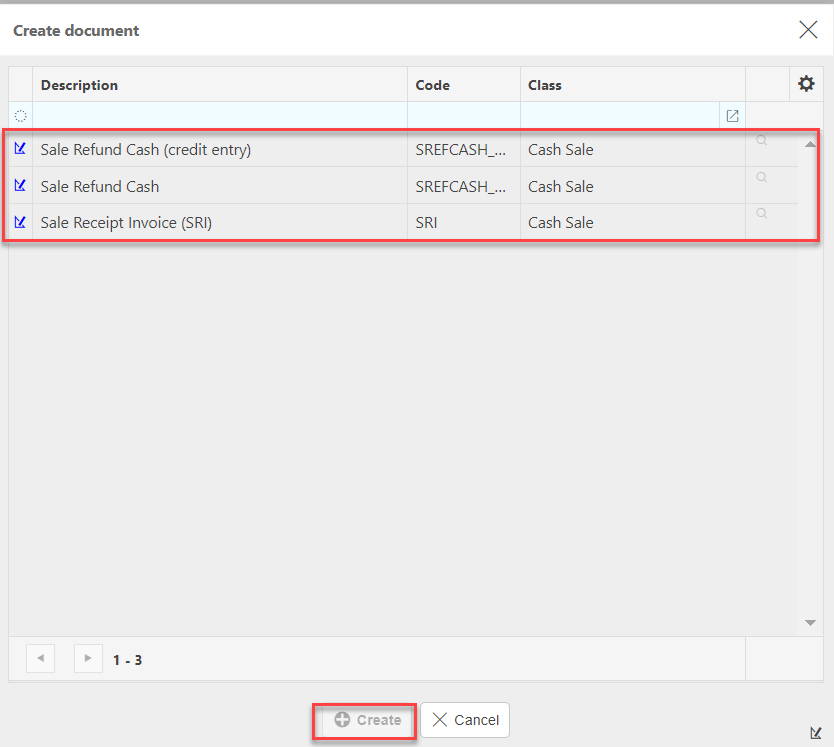
Choose the document type then press Create.
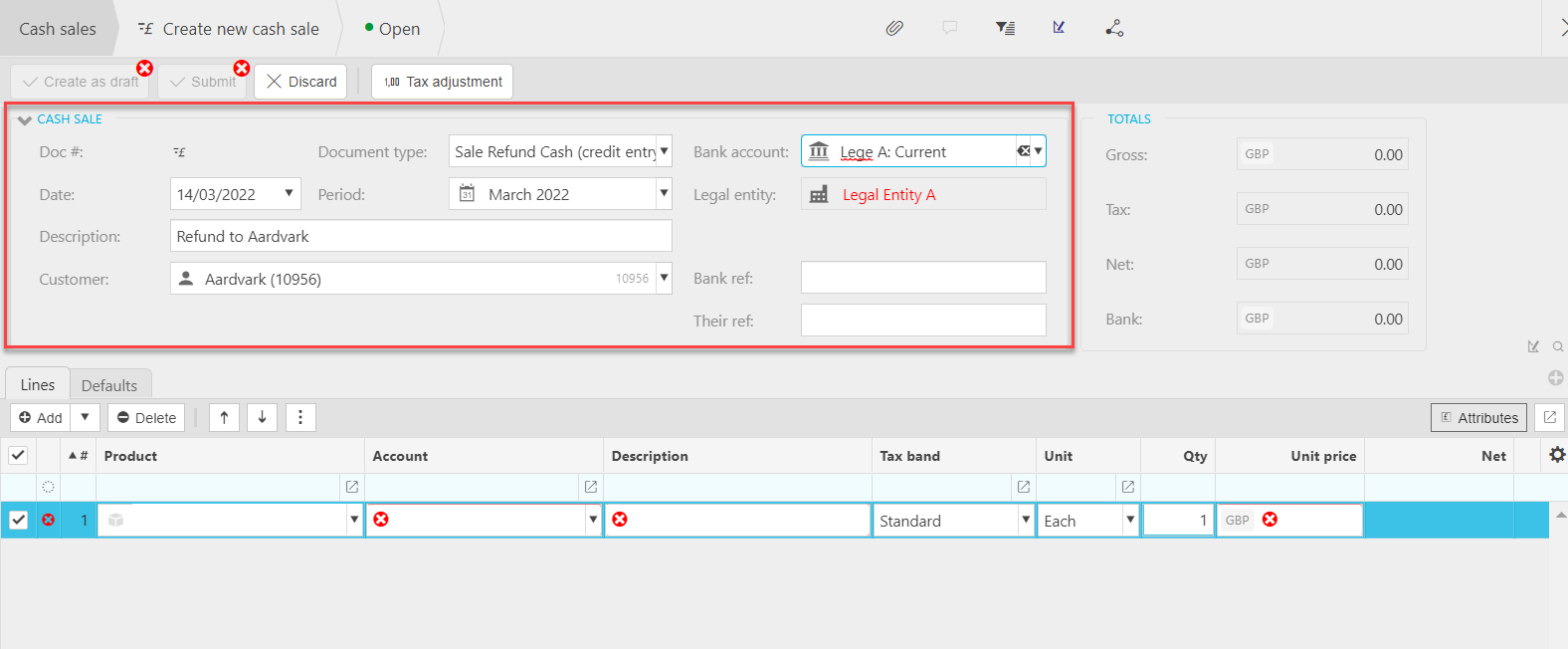
Enter the Bank account that will be receiving the payment.
Enter the Customer.
Tip
If you need to create a Customer press
 then fill out the Customer details.
Fill in the remaining fields.
Remaining fields explained
- Cash sale type: This will be auto filled with the document type selected in step 2.
- Date: This will be auto filled with the date current date however, this can be changed.
- Period: Enter the financial period.
- Description: This will be used to identify the receipt in the finder.
- Bank ref: This will be used to identify the cash sale in your bank account.
- Their ref: This reference will be used to identify the sale.
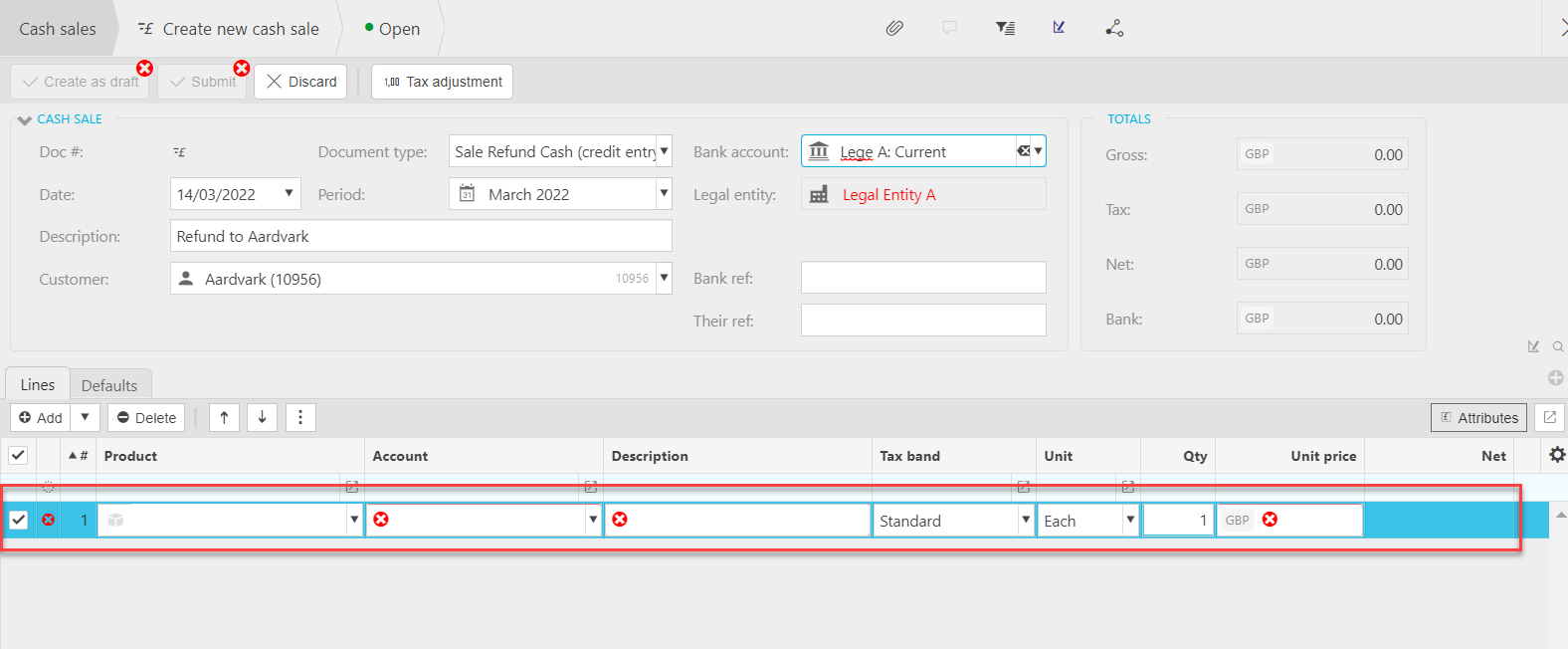
Add Lines and posting attributes.
Note
Multiple Lines can be added for more Products.
For addition lines that are added for other Legal Entities, see further User Guides on Multico Cash Sales.
Lines and posting attributes explained
Lines
Product: This is the product being sold.
Account: If a product is being used, this will be auto-completed and read only otherwise select an account from available list.
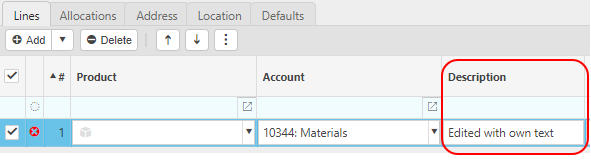
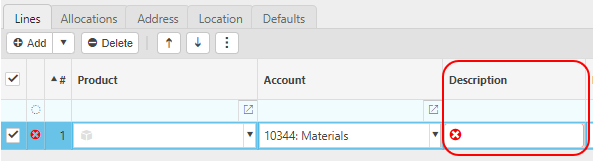
Description: Depending on the Force change setting in Chart of Accounts.

If the Force change is not ticked, then the Description field will be auto-filled ...

... however it can be edited.
If the Force change is ticked, then the Description field will be blank and you will be forced to enter a description.
Unit: This is the unit to measure the product.
Qty: This is the quantity of the product you have sold.
Unit price: This it the price per unit of the product.
Posting attributes
The posting attributes are derived from the chart of account rules related to the account code. Common attributes include cost centre and department but can also include custom attributes.
Note
Deferred Income
This item will appear depending on the settings for the Invoice type selected - see Deferred income guide for further information.
Also, this item may or may not be ticked, depending on the Customer's Ignore deferred income setting - see the Defaults section on the Customer tab in the Customers guide for further information.
If there is a requirement to sell to a Customer and have the goods delivered where the tax authority treatment is different, then set the Customer up as a Multi Tax Authority Customer.
When you are happy with the details, press Submit.
Tip
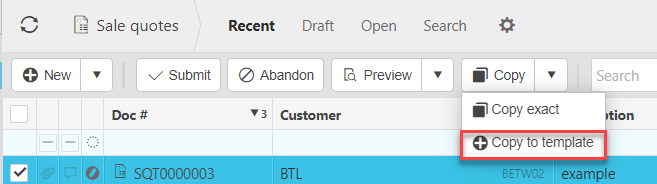
If you are going to be creating the same cash sale on a regular basis Copy to template.
Find a Cash Sale
Find a Cash Sale



Preview a Cash Sale
Preview a Cash Sale
Select the cash sale that you would like to preview.
Press Preview.

Copy a Cash Sale
Copy a Cash Sale
If you are regularly creating the same cash sale you can create a draft, then Copy exact to recreate the same sale with the same information.
To do so, create the draft cash sale.
Select the sale.

Reverse a Cash Sale
Select and open the Cash Sale (either highlighted on the list or open the Payment), then select the
 button and select Reverse.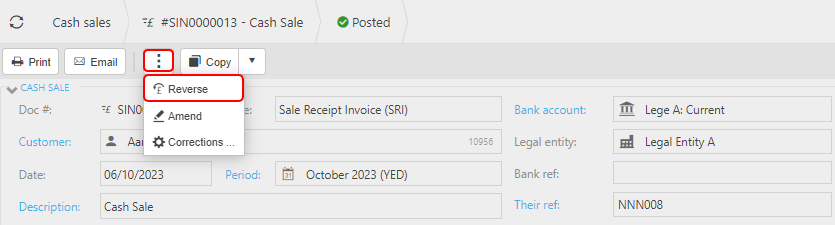
Enter the reason then press Submit.

Amend a Cash Sale
Select and open the posted Cash sale (either highlighted on the list or open the Payment), then press Amend option from the
dropdown button.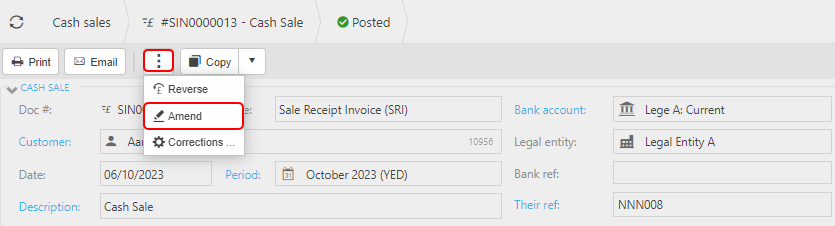
You can now make non-monetary changes to the document details without having to Unpost first. These amendments will not have any effect on any of the Accounts.
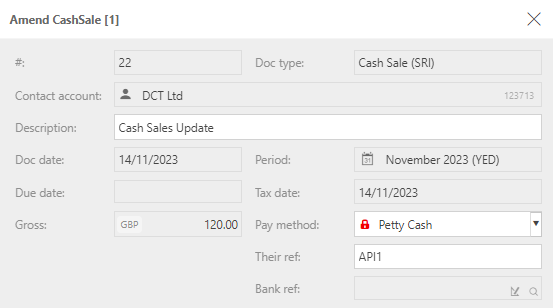
You can also make changes to Custom fields, which have previously been defined on the Custom fields tab when defining the Document type -
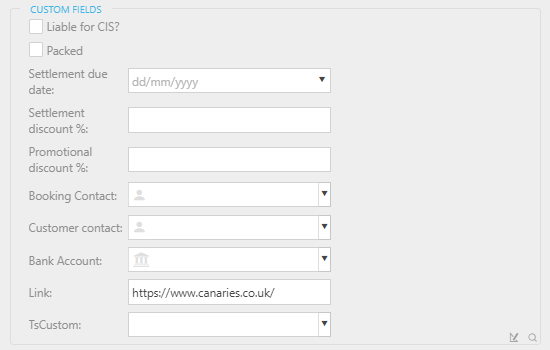
Note
User will need Attribute.Amend permissons.
Once complete, press Apply.

Make corrections to a Cash Sale
Select and open the Payment (either highlighted on the list or open the Payment), then select the
button and select Corrections.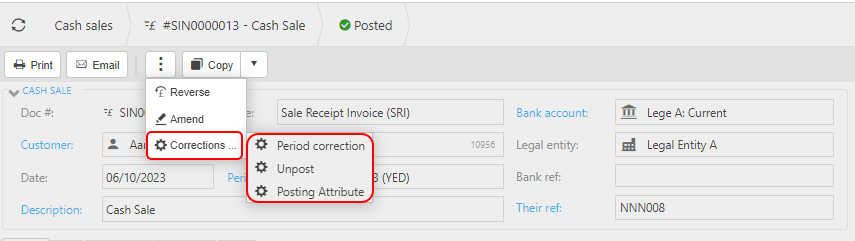
Period correction to make corrections to the Period.
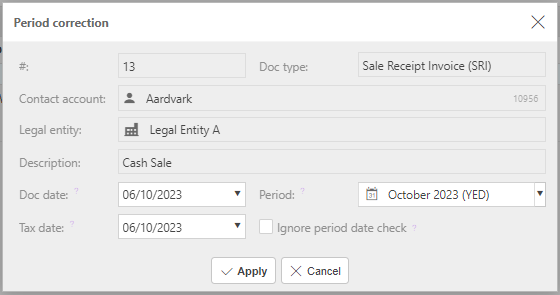
Make correction then select Apply.
Unpost to retract the Cash sale from the General Ledger
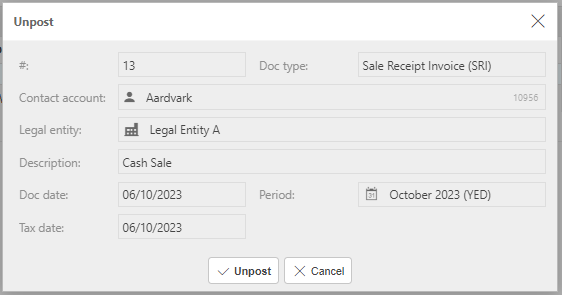
Select Unpost to proceed.
Posting Attribute to make corrections to individual attribute values on the Payment.
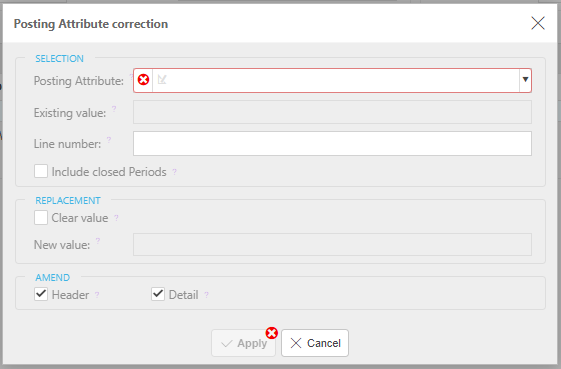
Further details Correction Posting Attributes
Updated March 2024