Expense Manager
The method of expense entry is common for both My expenses and Expenses manager.
In My expenses the user is restricted to entering expenses for themselves whereas using Expenses manager, the user can enter expenses for users where expenses entry has been delegated and/ or allowed by another user (e.g. expenses Administrator).
- You can enter a personal expense claim OR a credit card expense claim. A personal expense claim will be paid to the Resource directly whereas a credit card expense will be logged for Bank reconciliation to the credit card Bank account.
Note
For users to input their expense claims there will need to be a Resource. Their User account will need to be updated with the Resource, Bank account and payment terms.
Expense products will need to be created and accessible for the Resource entering the expense claim.
Authorisation Workflows will need to be created for user's expense claims to require authorisation.
Document types for a personal expense and/or a credit card expense will need to be available. User Roles for Credit Card entry will need to be assigned to the User.
Create an Expense claim
Open the MY expense menu option.
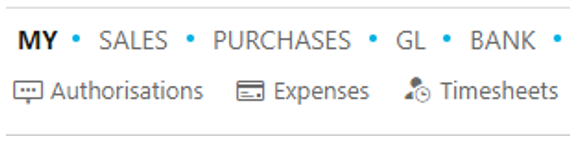
Select New
This will display the available Document types as per the systems settings. Highlight the chosen type (Personal expense or credit card expense) and select Create.
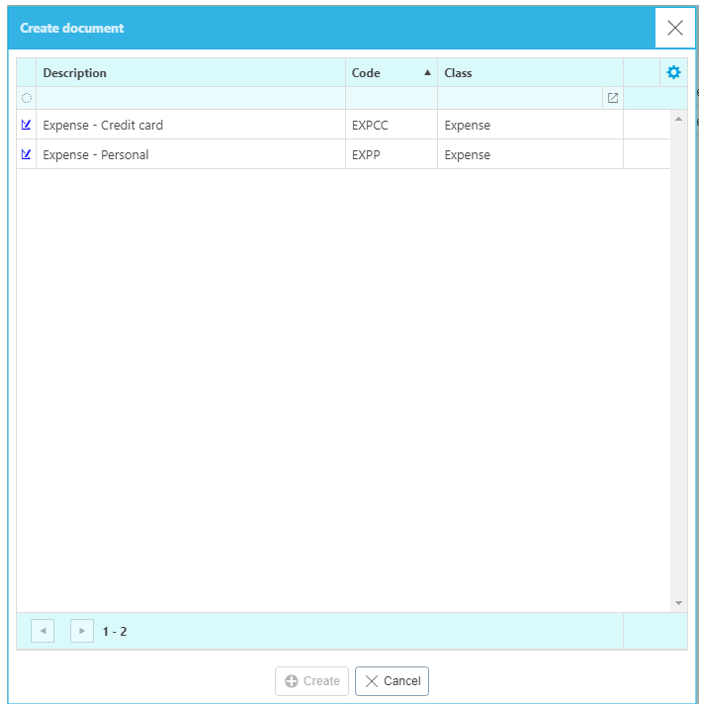
The header section of the Expenses.
Header section explained
Transaction Date will default to today’s date which can be over-written.
Due Date will automatically calculate according to the Resource payment terms.
Period: The accounting period for the order (available for reporting filters).
Legal entity mandatory field that may be pre-populated depending on settings.
Type will be populated with Expense – Personal.
Resource will be defaults to the Resource linked to the [User account]**(../../settings/user_access/user_account/index.md).
Description is used for a summary description for the expense claim. This is a mandatory field.
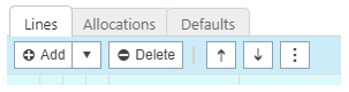
Select Add to create a new expense line(s)
Lines explained
Note
Unwanted lines can be Deleted
The order of lines can be re-arranged using the arrows.
The drop-down arrow alongside the Add button displays the options to Copy an existing line.
Line Fields
Note
Using the
 icon allows you to select what field to display.
Date: Of the expense
Product: Select from the validation list.
Account: Mandatory field which will be pre-populated from the Product.
Description: Mandatory field which will be pre-populated from either the Product or Account record, either of which can be amended.
Tax Band: Mandatory field which will be pre-populated from either the Product or Account record, depending on settings this may/may not be available for amending.
Non recoverable: Tick this checkbox if there is VAT on the expense but there isn't a tax receipt attached.
Unit: Defaulted from the system settings or the Product which can be amended.
Quantity: Determines the number of units being ordered per unit.
Unit Price: May be pre-populated from product price on the Product or manually entered.
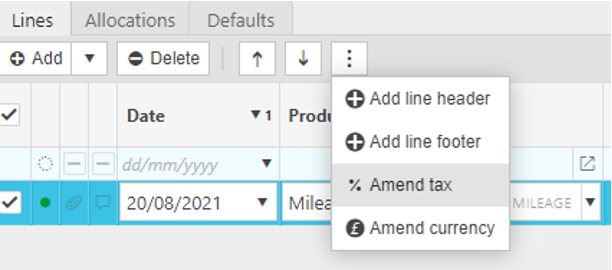
Note
Line Headers and footers can be added to group expense lines. Tax and Currency can also be amended if required.
Tip
Press CTRL-Click to drill down to individual documents.
Posting Attributes
In addition to the standard line fields additional Attributes may apply to complete the required details.
These could be optional or mandatory fields based on the setting of the Product.
Display of these fields is optional based on the Attributes toggle button.

Tip
Clicking on the icon alongside the Attributes button changes the display to only show the lines, which is useful for documents with multiple lines.
Select
 to attach receipts.
To upload from a location on your PC Select

Locate the file you wish to upload and select open.
Note
You can upload receipts by dragging a file from the location and dropping this into the relevant attachment sub section.
When all lines are entered the expense claim can be saved using:
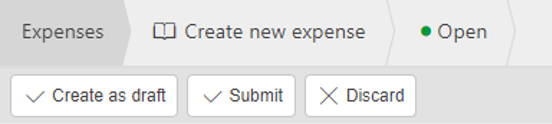
- Draft allowing further editing.
- Discard removing the transaction altogether.
- Submit to update to a pending status, if applicable this will enter the Authorisation Workflows or automatically convert to an approved status.
Amend an Expense
Select and open the posted Expense to amend, then press Amend option from the
 dropdown button.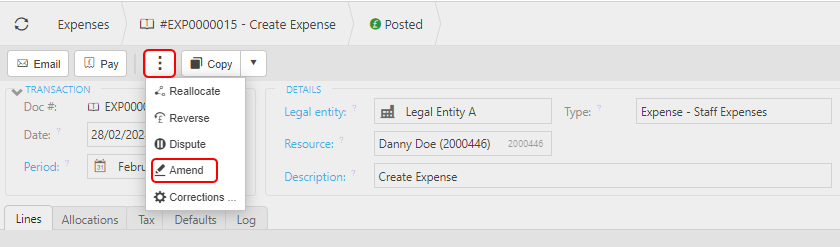
You can now make non-monetary changes to the Expense details without having to Unpost first. These amendments will not have any effect on any of the Accounts.
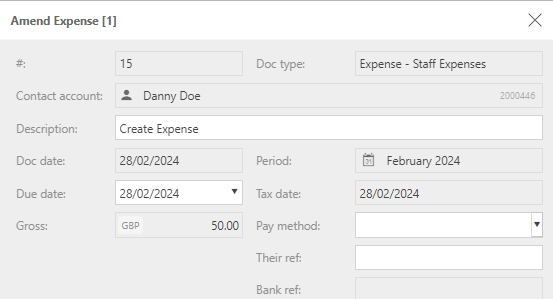
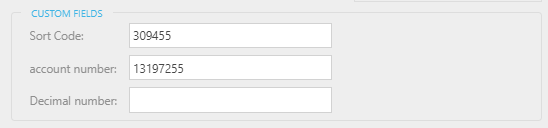
You can also make changes to Custom fields, which have previously been defined on the Custom fields tab when defining the Document type -
Note
User will need Attribute.Amend permissons.
Once complete, press Apply.

Updated March 2024