Prepayment automation
The Prepayment automation can be found and run by selecting the Automations menu from either the Pulse menu or the Side menu.
Manually run the prepayment automation
Follow the steps below to manually run the automation.
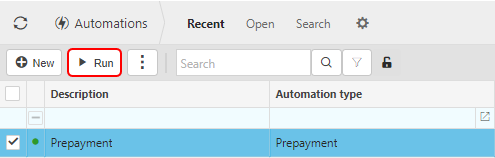
Select the automation then press Run.
Enter the automation criteria.
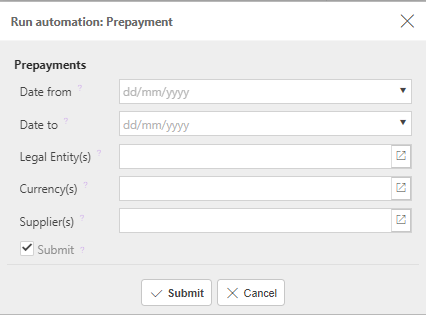
Date from: Leave this date blank if you want to select all available documents or enter a date to restrict documents to be greater than or equal to this date.
Date to: Leave this date blank to use the current date, or enter the latest Document date that you wish to include.
Legal Entities: Leave parameter blank to select all Legal Entities or select Legal Entity(s) to restrict the automation.
Currency: Leave parameter blank to select all or select Currency(s) to restrict the automation.
Suppliers: leave blank to select all or select Customer(s) to restrict the automation.
'Submit': If this checkbox is ticked, the document will be automatically submitted for authorisation. If unticked, the documents will be created in a draft state.
Press Submit.
Updated February 2024