Stock Products
The Stock products in this section will be available for use throughout the Stock functions.
Viewing Stock products
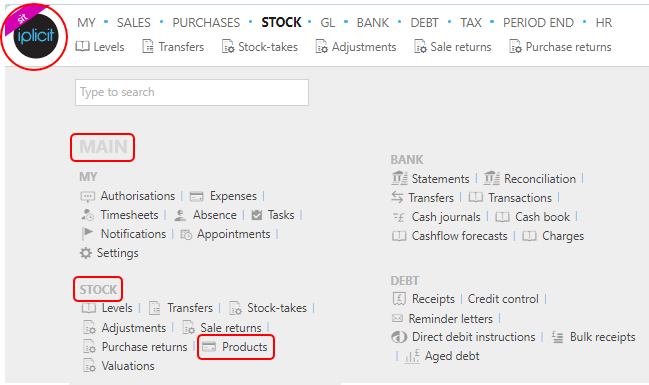
Select Stock / Products from the Settings section of the pulse menu -
Note
This is an example screenshot of the pulse menu.
Position of the menu items within pulse will vary according to available options and dependant on personal screen resolution.
or from the Main Menu select Stock then Products -

or enter Stock products in the Quick Launch Side Menu.
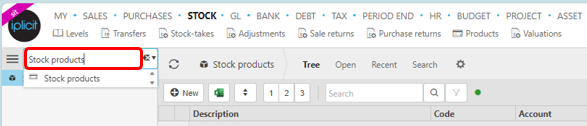
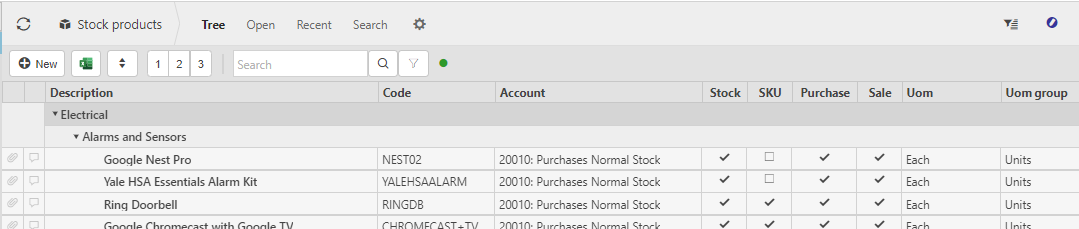
This will then show the Stock products on the system where normal customisation of Sets can be used.
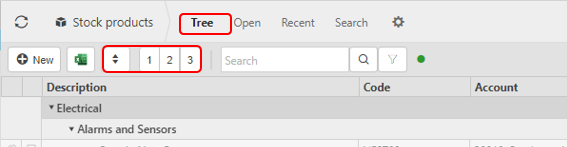
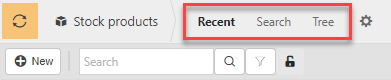
And Tree option will be available where you can toggle the rows to different levels.
Tip
To modify the columns displayed, select  in the top right of the page, then tick/untick the information you want to see or not.
More Information
- Stock Code: This is the code that was chosen when the stock product was first created.
- Product group: The Product group will determine defaults adopted by the stock product e.g. its availability for sale and purchase documents.
- Allow negative stock:
- The tick boxes: Whether it’s an expense, sale, purchase, job, loan, stock or payroll product.
- Last modified: This will present the UTC date and time.
- Last modified by: This shows who was the last person to modify the stock product.
Creating a new Stock product
Select Stock products from one of the options as shown above in Viewing Stock products.
Press New.

Enter a product code.
Select a Product group.
Enter a product description to identify the product.
Select a Unit group and Unit.
Select a product type.
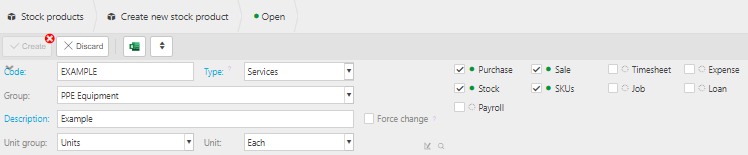
Tick the features you would like the products to be available for.

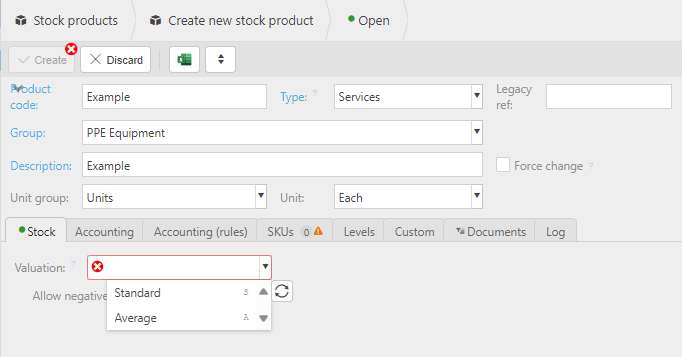
Select the method of valuation for the stock product.
Note
- Standard: This method implies manual assigning of cost to items.
- Average: This valuation method divides the total cost of purchased items by the number of items in stock.
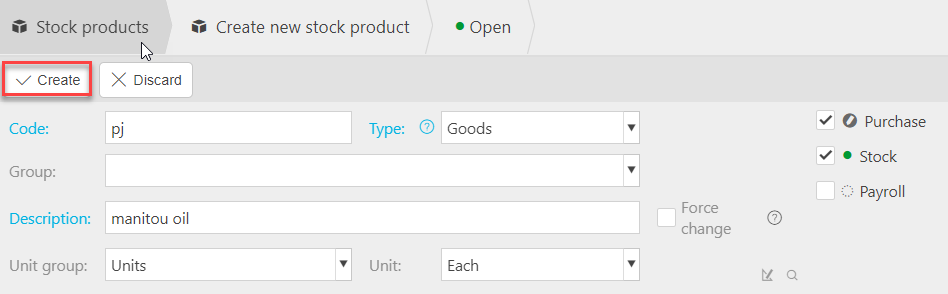
Press Create.
Editing current stock setups
Open the stock product you would like to edit.
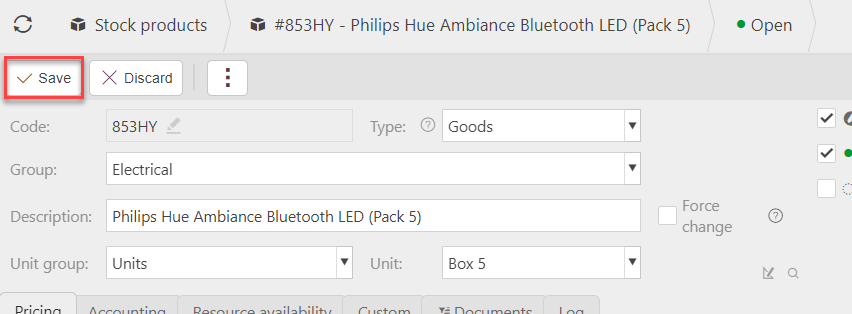
Press Edit.
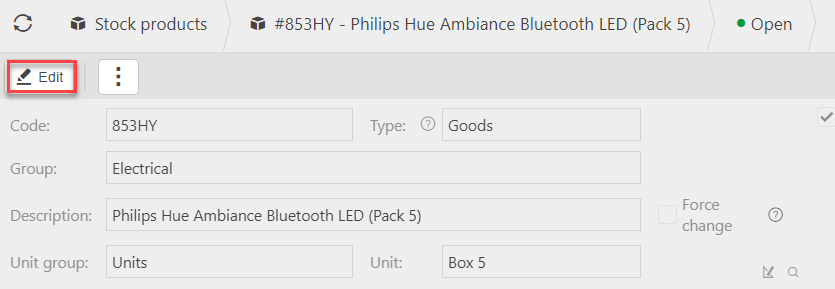
You can now make changes to the input areas that are white.
you can also make changes in the following tabs:





Find a Stock product
The search bar will find stock products using the description, code or group names.

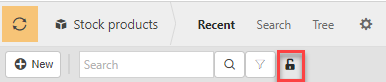
By pressing the lock icon, the grid will only display open items.
You can also toggle between the Sets: Recent, Search or Tree to help find stock products depending on your needs.
The filter icon can further assist your search through searches based on product and account groups.

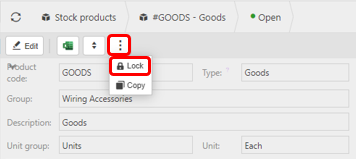
Lock a Stock product
Locking a stock product will disable it from being used throughout the stock features.
To do so, open the product that you wish to disable.
Press Lock.
Copy a Stock product
If you would like to create a similar stock product to another pre-existing product, you can copy then make changes to it.
To do so, choose the product that you would like to copy.
Press Copy

Updated March 2024