Adjustments
The adjustments feature is used to make corrections to the stock levels.
The screenshot below shows a sample grid of stock adjustments, which includes some key information about the adjustments.

Further Information
- Doc #: The document number.
- Stock date: The date the stock was adjusted.
- Location: The stock location of the stock.
- Doc-type: The document type.
- Gross: The cost of the stock.
Tip
To modify the columns displayed, select
 in the top right of the page, then tick/untick the information you want to see or not.
In this section you can
Copy a stock adjustment
If you are regularly repeating a stock adjustment you can copy a pre-existing one rather than creating a new one every time.
To do so, select the stock adjustment that you would like to copy then press Copy.
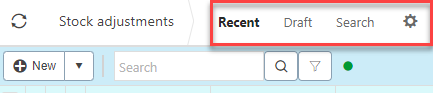
Find a stock adjustment

Create a new
Press New.
Enter a description.
Fill in the remaining fields depending on your needs.
Remaining fields explained
- Doc Type: This will be auto filled with the document type.
- Stock Date: The date of the transfer.
- To location:This is the stock location that the stock product is being transferred to.
- Legal entity: Select the legal entity.

Add the lines.
Lines explained
- Stock Location: The stock location indicates where the stock product is kept.
- SKU: This is the stock keeping unit.
- Product: This is the product being adjusted.
- Unit: This is the unit to measure the product
- Target: The target stock level.
- In: The amount of stock coming in.
- Out: The amount of stock going out.
- Unit price: This it the price per unit of the product.

When you are happy with your adjustment Press Submit.